# Setting Design Guardrails
There are several ways to set up design guardrails in Dyspatch to ensure that all of your emails maintain consistent branding — while still allowing the flexibility to reuse your blocks to create any emails you need.
# Themes
[Themes](/blocks_and_themes/styling_with_themes) let you set default styles to define the basic look and feel of your emails to ensure that your branding will stay consistent. Only blocks that have been added to a theme will be available to use in the email editor when creating emails with that theme. Gain more control by [assigning themes to workspaces](/blocks_and_themes/styling_with_themes/#assigning-themes-to-workspaces).

Learn more about [styling emails with themes](/blocks_and_themes/styling_with_themes/).
# Blueprints
Create [Blueprints](/emails/creating_blueprints/) to offer your team pre-built, reusable starting points when creating emails that need to look and function the same every time, on all devices.

See [creating blueprints](/emails/creating_blueprints/) to get started!
# Dys-Palette
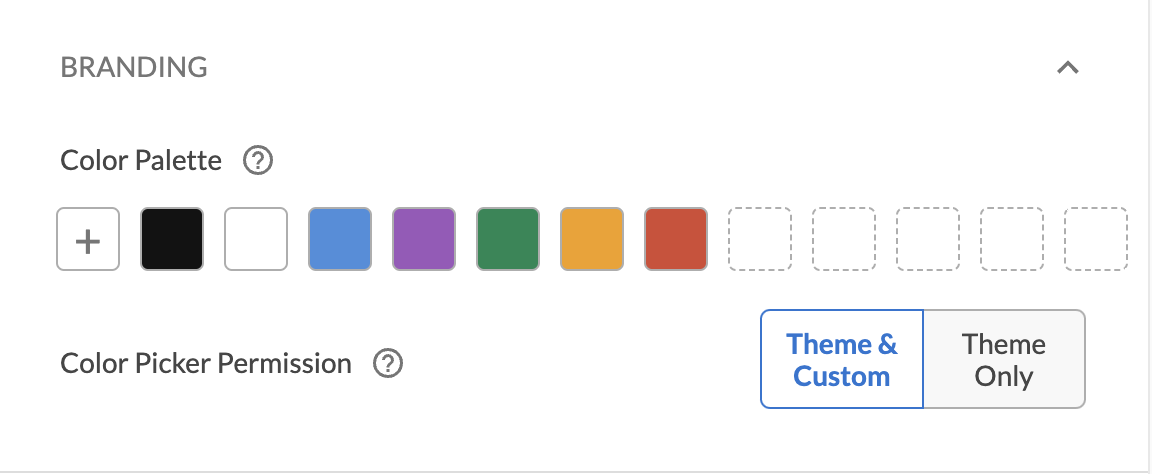
Establish your branding colors by adding up to 12 colors to your theme's Color Palette. The **Theme Only** Color Picker Permission option will only allow users to customize editable email elements using the theme's defined color palette, while the **Theme & Custom** option will display the theme's color palette but allow users to manually input a different color.
 # Editable Blocks
An element in a block needs to be marked as [editable](/blocks_and_themes/using_editable) with a unique name in order to be editable and/or translatable when creating an email. You can also use `editable-fields` to only allow specific attributes to be editable (for example, having the text of a dys-button be editable but the href be fixed), `editable-styles` to allow certain element styles to be changed, and `editable-group` to sync content between separate desktop and mobile stylings.

See [using editable](/blocks_and_themes/using_editable) to learn more.
# Style Controls
You can also set guardrails for all editable elements at the theme level from the [Style Controls](/blocks_and_themes/styling_with_themes/#style-controls-tab) tab. These toggles let you restrict which editable styles are globally available for each DML element, without setting it on every block individually.

# Approval Workflow
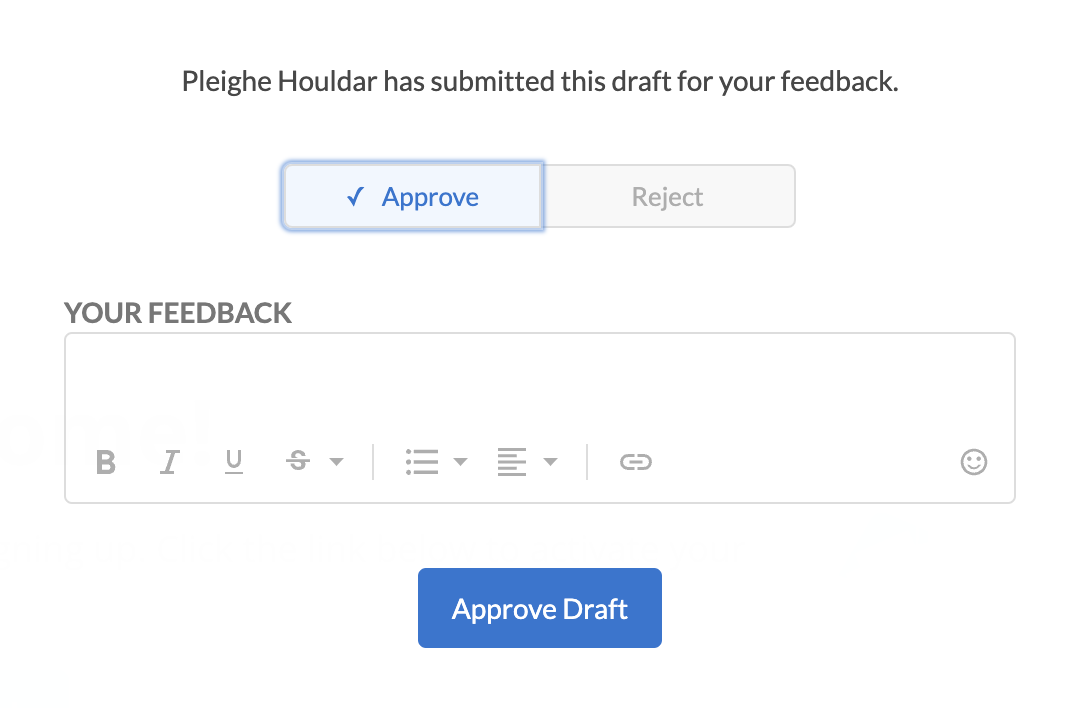
As a final guardrail, before an email draft can be published and exported, it must be [approved](/emails/submitting_an_email/) by a workspace owner or organization admin. This ensures that there will always be a final review before any emails are sent.
# Editable Blocks
An element in a block needs to be marked as [editable](/blocks_and_themes/using_editable) with a unique name in order to be editable and/or translatable when creating an email. You can also use `editable-fields` to only allow specific attributes to be editable (for example, having the text of a dys-button be editable but the href be fixed), `editable-styles` to allow certain element styles to be changed, and `editable-group` to sync content between separate desktop and mobile stylings.

See [using editable](/blocks_and_themes/using_editable) to learn more.
# Style Controls
You can also set guardrails for all editable elements at the theme level from the [Style Controls](/blocks_and_themes/styling_with_themes/#style-controls-tab) tab. These toggles let you restrict which editable styles are globally available for each DML element, without setting it on every block individually.

# Approval Workflow
As a final guardrail, before an email draft can be published and exported, it must be [approved](/emails/submitting_an_email/) by a workspace owner or organization admin. This ensures that there will always be a final review before any emails are sent.