# Organizing Emails in Dyspatch
Make use of your Workspaces and folders to manage your Dyspatch emails and help your team stay organized.
## Workspaces
The top-level of user organization in Dyspatch is [Workspaces](/administration/managing_workspaces/). An Organization Administrator can set user [access and permissions](/administration/dyspatch_roles/) for each Workspace individually. This means that if you have separate teams working on your marketing and transactional emails, you can use different Workspaces to ensure you’re only granting users access to the emails they are working with.

## Folders
Use folders within a Workspace to further sort and organize your emails. Your Workspace can contain up to 100 folders and emails at the top level, and each folder can contain up to 100 emails. This gives you a lot of space to keep your team organized. Use the **Action** menu to move folders between Workspaces.

## Moving Emails
### Drag and Drop
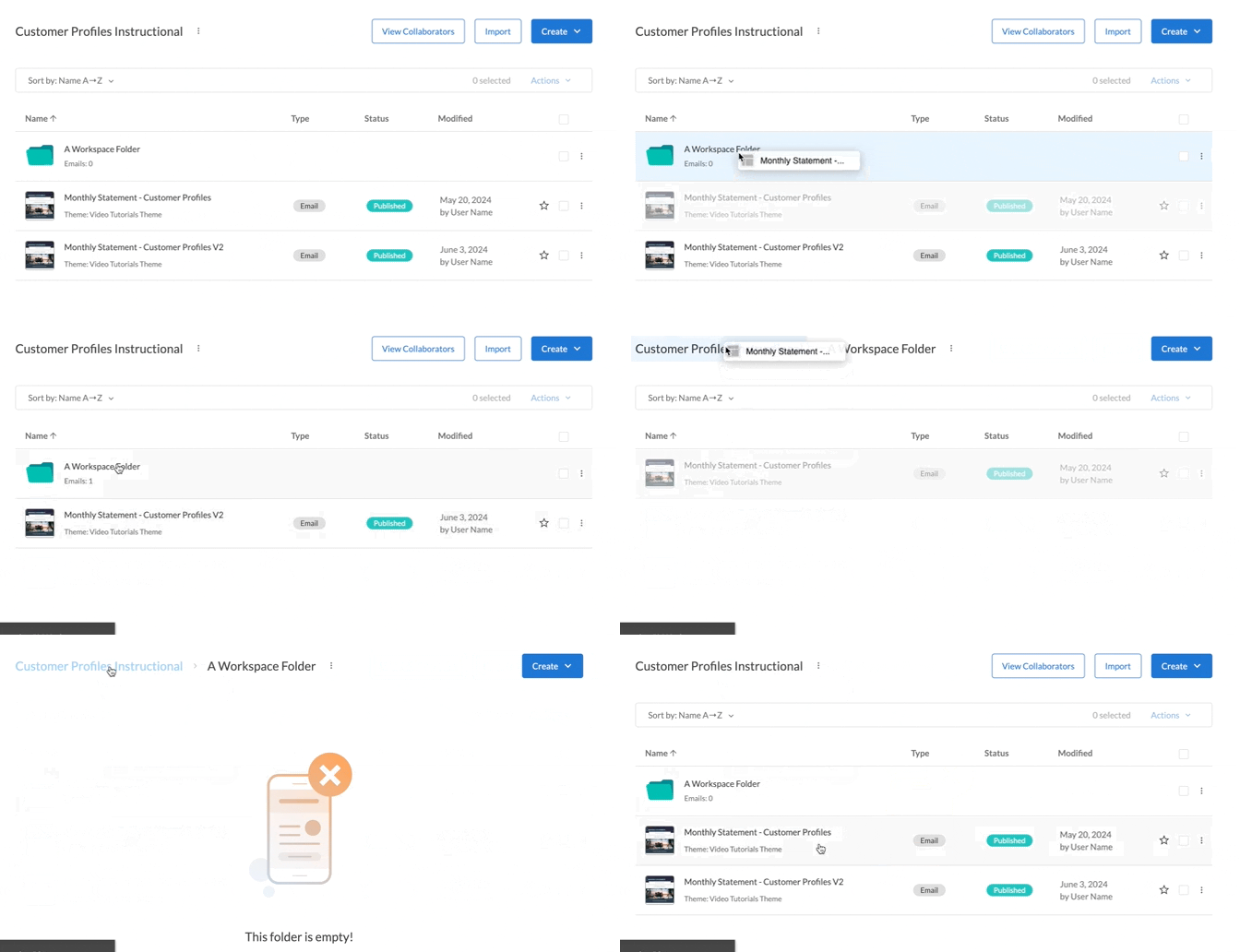
Drag and drop an email into the proper folder or Workspace. To move an email out of a folder, drag it to the Workspace name at the top of the screen. Emails can also be moved into another Workspace this way — as long as you have at least [edit access](/administration/dyspatch_roles/) in both the current and target Workspaces.
 ### Bulk Actions
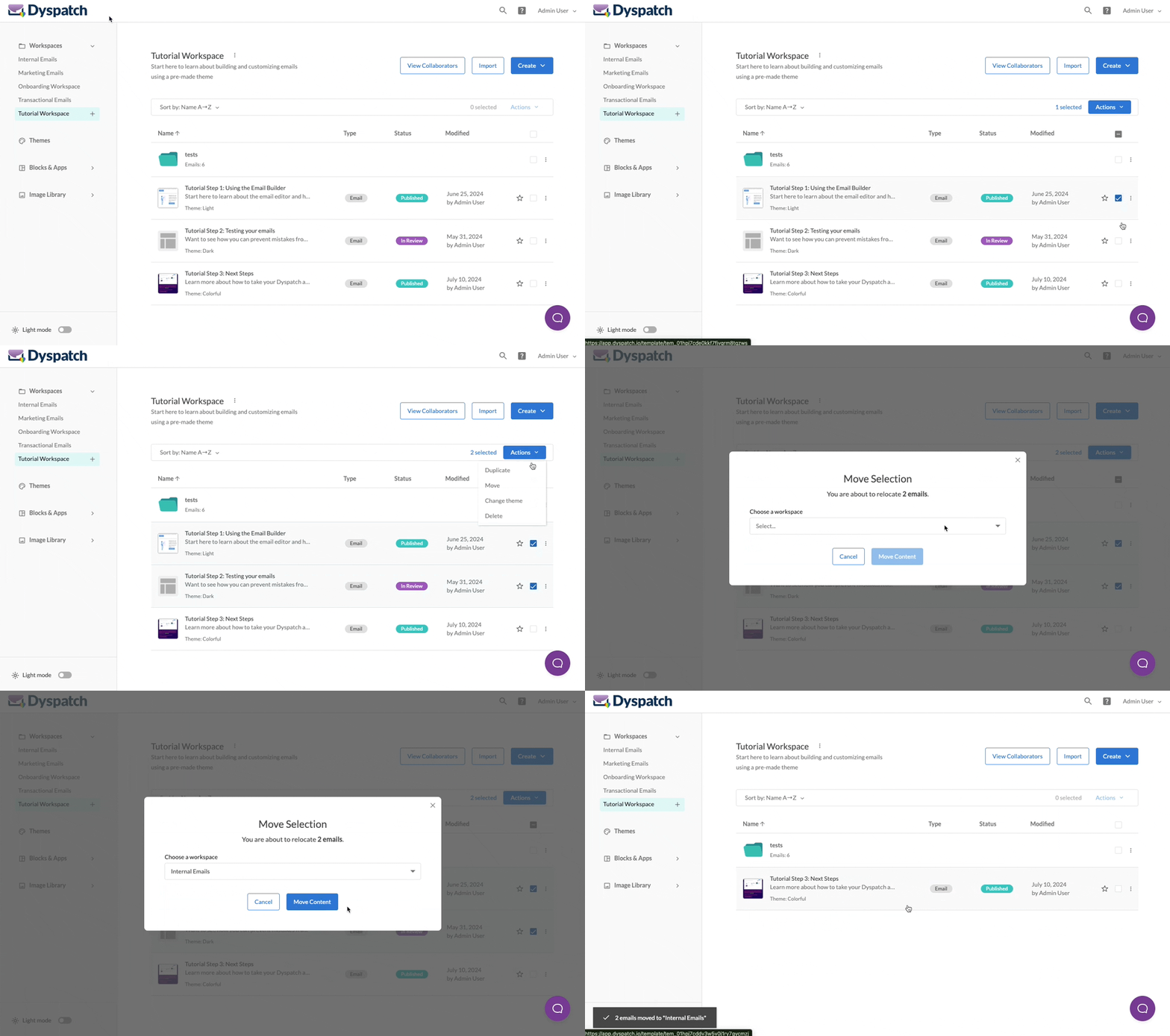
Use Bulk Actions to move multiple emails at the same time.
1. Select each email you'd like to move
2. Click the **Actions** menu
3. Select **Move**
4. Pick the Workspace and Folder you'd like to move the emails to
### Bulk Actions
Use Bulk Actions to move multiple emails at the same time.
1. Select each email you'd like to move
2. Click the **Actions** menu
3. Select **Move**
4. Pick the Workspace and Folder you'd like to move the emails to
You can also use Bulk Actions to duplicate, delete, or change the Theme for multiple emails.