# Copying Block Content Between Blocks
Copy the content and styles from one block and paste them into another instance of the same block.
## Copying Block Content
In the Email Builder preview, right-click a block to open its context menu, then select **Copy Content**. This copies the block's content and any editable styles to your clipboard.

## Pasting Block Content
Right-click another instance of the **same block** and select **Paste** to apply the copied content and styles. **Paste** only appears when you've copied content from that same block type — you can't paste a "Hero Banner" block's content into a "Header" block.
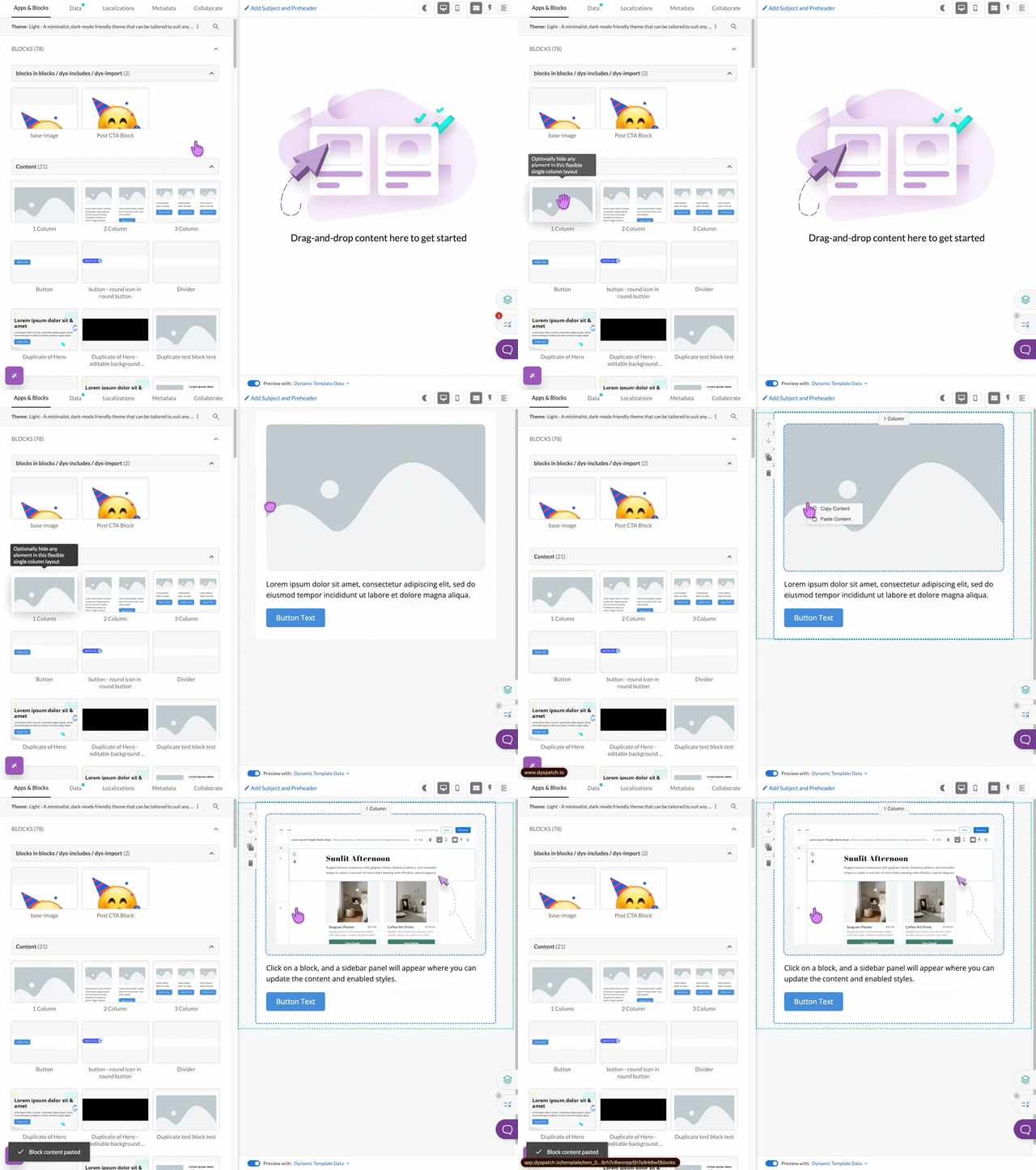
Copying and pasting only works between blocks in the same theme
## What Gets Copied
Copying a block carries over:
- Its editable content
- Any editable styles applied to it
## Copying Multiple Blocks
Your clipboard can hold copied content for several different blocks at once, but only one copy per block at a time.
For example, if you copy content from a **Header** block, then copy content from a **Paragraph** block, your clipboard now holds both — you can paste either into a matching block. But if you copy from a different instance of the **Header** block, it replaces the **Header** content already in your clipboard.
This lets you copy several blocks up front, then paste them all into a second email without switching back and forth for each one.