# Using the Email Builder
Drag and drop blocks to assemble your email. Build, localize, edit, and preview email content all in one place without touching code.
## In the Email Builder
Let's take a look at the elements that will help you assemble an email.
### Add Subject and Preheader
Clicking **Add Subject and Preheader** above the email preview will drop down subject and preheader input fields. If a subject or preheader already exist, click the **Edit** icon next to the subject line.
The preheader, also sometimes called preview text, is the text that follows the subject line in an email inbox. Read more about preheaders.
#### Scribe AI Subject Line and Preheader Generator
Use to auto-generate an engaging subject line and preheader based on the content of your email, or include your own custom prompt to tailor the suggestions.
Click on the Scribe AI wand icon in the subject line field to open the subject line generator drawer. Your email's content will be evaluated before the subject line and preheader are generated. You may also include any additional information like the email's intention, audience, or goals for this email.

Submit your request and Scribe AI will offer a variety of subject line and preheader combinations to choose from. Either apply a suggestion or refine the suggestions to collaborate with Scribe.

## The Apps & Blocks Tab

In the Apps & Blocks tab are all the blocks and block folders assigned to the theme being used to build your email, as well as a selection of customizable layouts (if enabled in your account's settings).
Drag your blocks into the preview section and select a block to customize its content. Editing content in the blocks will automatically update the email preview on the right.
#### Scribe Email Assistant
Select the Scribe Email Assistant wand icon in the Apps & Blocks tab to open a chat panel where you can describe changes and let Scribe build or edit blocks for you. Read more in [Using Scribe Email Assistant](/emails/using_scribe_email_assistant/).

## The Data Tab
Add and select from different sets of data to preview your email's dynamic content.
Preview Data and Customer Profiles are similar in that each is data your team enters into Dyspatch to preview dynamic email content. Preview Data is unique to the email it is stored in, whereas Customer Profiles are available as test data in all of your organizations emails
### Preview Data
Add test data as custom variables or in format in the **Data > Preview Data** tab. To view the email with preview data, toggle on **Preview Dynamic Data**.
Read more about [Testing Your Email With Preview Data](/emails/testing_your_email_with_preview_data).
### Customer Profiles
Customer Profiles are similar to Preview Data except that they're available in all of your emails, and created under the [Administration Customer Profiles](https://app.dyspatch.io/admin/data/profiles) menu. Store different data sets and scenarios to individualize emails for your customer's unique status.
Preview Data and Customer Profiles are only for previewing in Dyspatch. Data they contain will not be used in your live emails
### Variables in Use
See all variables being used in your template by expanding the **Variables in Use** dropdown on the **Data > Preview Data** tab.

## The Localizations Tab

The **Localizations** tab is where you create and manage different localized versions of your email. To learn more about , read our [localizing an email article.](/localization/localizing_an_email/)
## The Metadata Tab

The **Metadata tab** is where you enter your ‘From’ and ‘Reply’ details for your email, such as ‘Sender’ and ‘Reply To’ names and email addresses. You can also see the emails's ID on this tab and a list of all dynamic variables in use. Our [Setting Up Metadata](/emails/setting_up_email_metadata) article has more information available.
## Saving, Testing, and Submitting a Draft
To create a new draft or view a list of existing drafts, click the draft name at the top of the email builder. You can also view previous revisions of the current draft by clicking the revision history icon. The top bar also includes the Preview button to test your email on a variety of devices and email clients with [device testing](/emails/testing_with_device_previews/), send a test email, and the option to submit your draft for approval. See more about the [submitting an email](/emails/submitting_an_email/).
Review any Email Guardrails to catch any placeholder URLs, invalid dynamic data, and other commonly missed best practices
## Video Walkthrough
Want to see our email builder in action? Check out our video walkthrough to learn some extra tips and tricks!
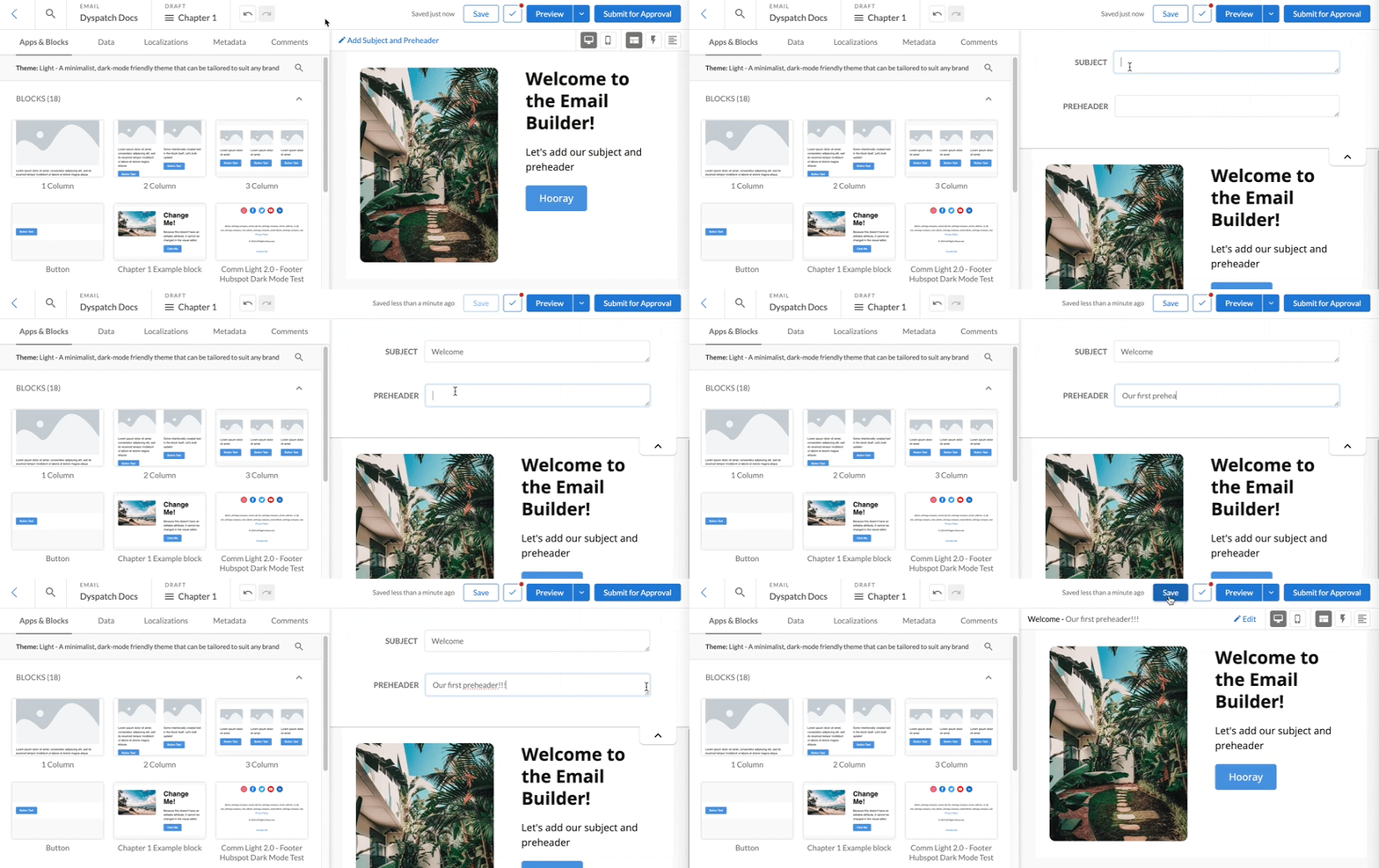 Clicking **Add Subject and Preheader** above the email preview will drop down subject and preheader input fields. If a subject or preheader already exist, click the **Edit** icon next to the subject line.
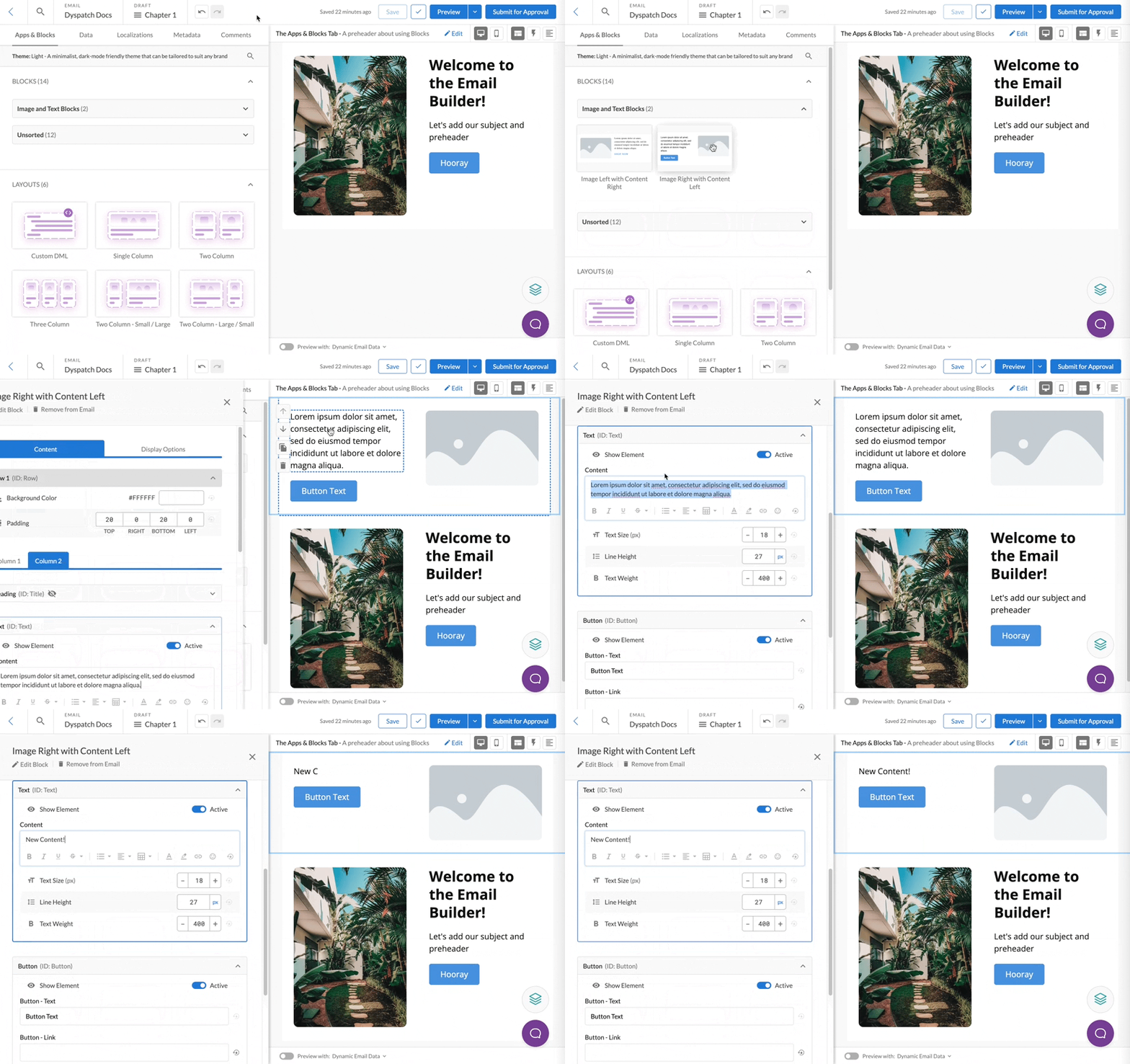 Drag your blocks into the preview section and select a block to customize its content. Editing content in the blocks will automatically update the email preview on the right.
#### Scribe Email Assistant
Select the Scribe Email Assistant wand icon in the Apps & Blocks tab to open a chat panel where you can describe changes and let Scribe build or edit blocks for you. Read more in [Using Scribe Email Assistant](/emails/using_scribe_email_assistant/).

## The Data Tab
Add and select from different sets of data to preview your email's dynamic content.
Drag your blocks into the preview section and select a block to customize its content. Editing content in the blocks will automatically update the email preview on the right.
#### Scribe Email Assistant
Select the Scribe Email Assistant wand icon in the Apps & Blocks tab to open a chat panel where you can describe changes and let Scribe build or edit blocks for you. Read more in [Using Scribe Email Assistant](/emails/using_scribe_email_assistant/).

## The Data Tab
Add and select from different sets of data to preview your email's dynamic content.
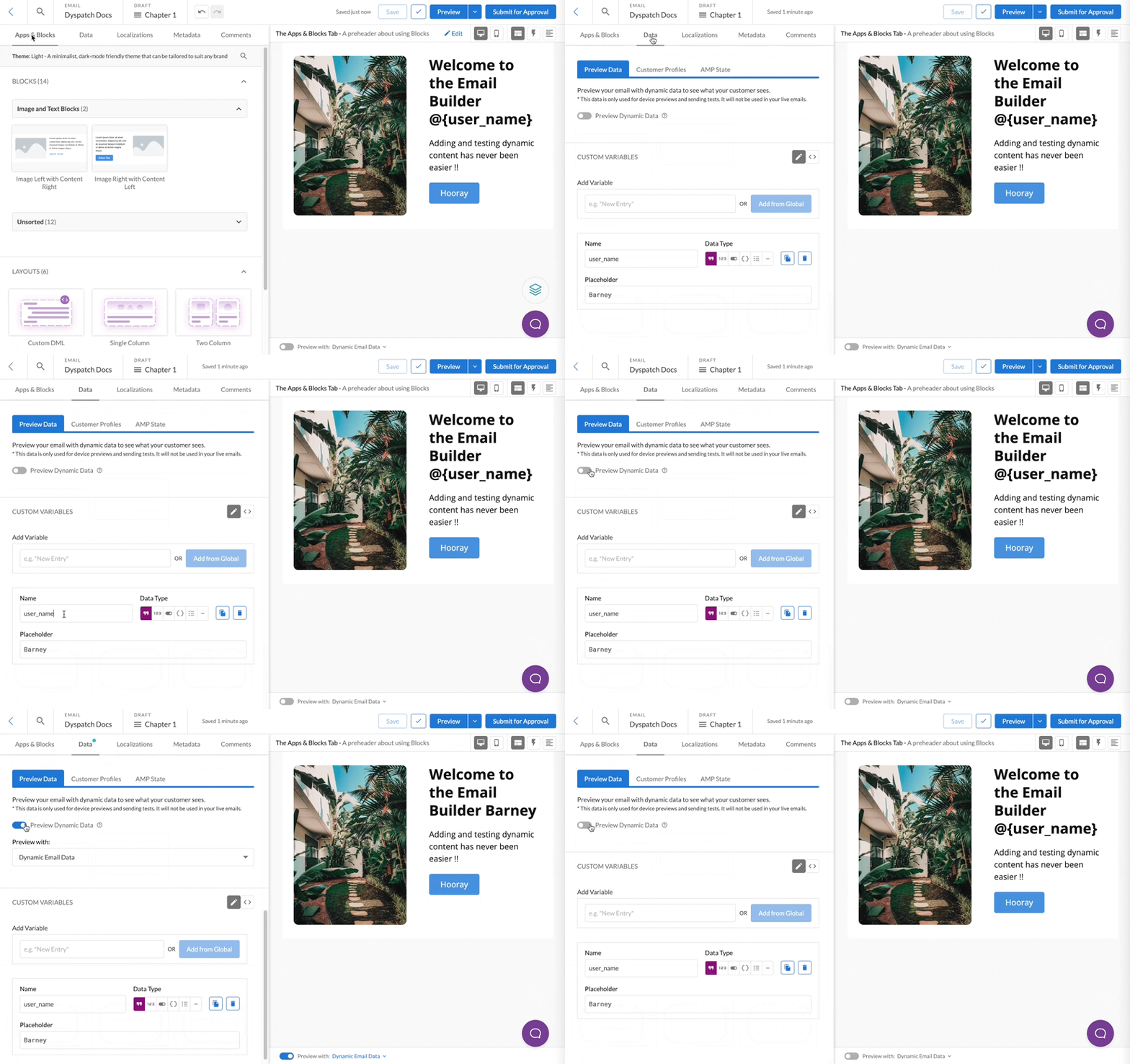 Add test data as custom variables or in
 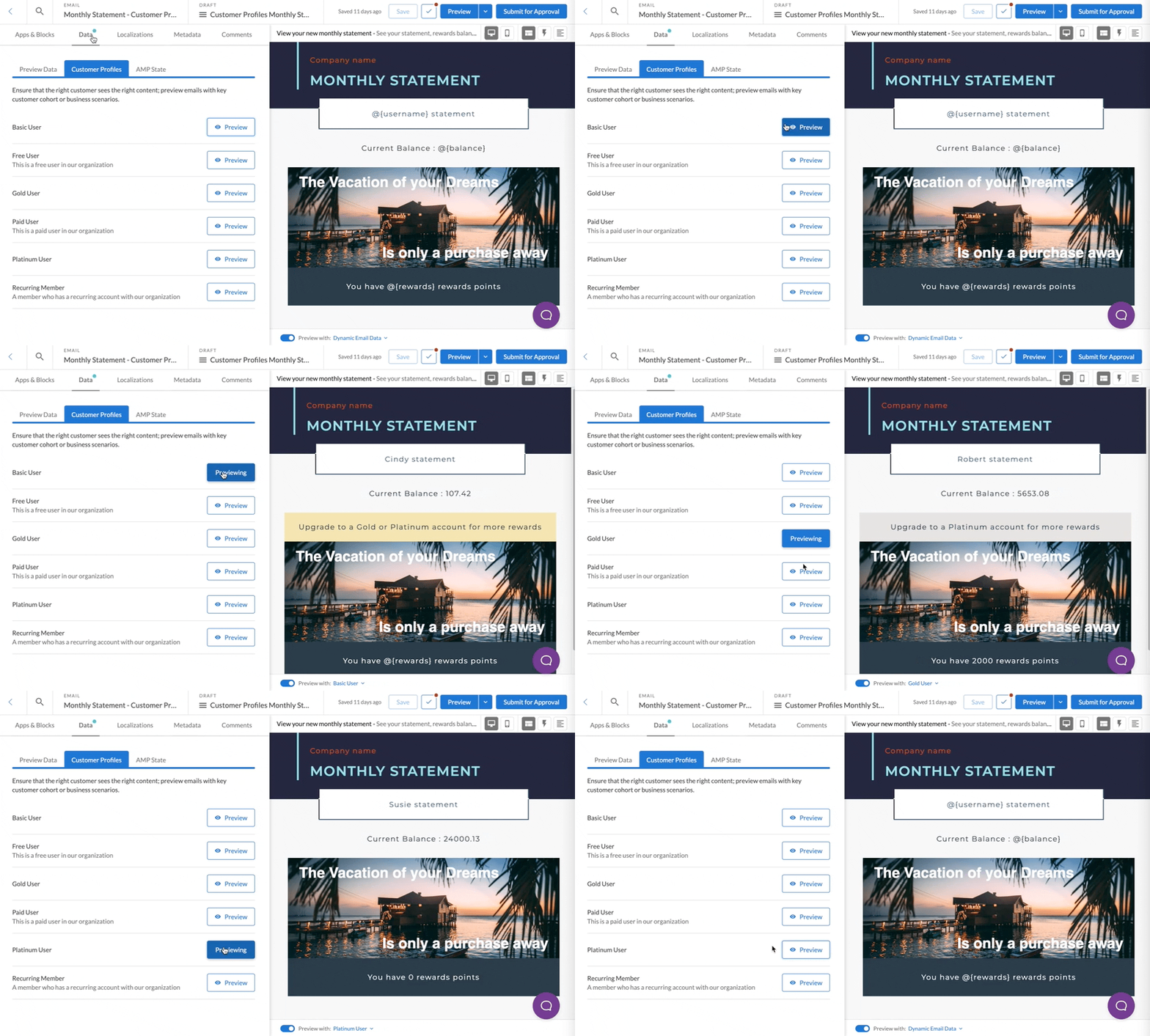 Customer Profiles are similar to Preview Data except that they're available in all of your emails, and created under the [Administration Customer Profiles](https://app.dyspatch.io/admin/data/profiles) menu. Store different data sets and scenarios to individualize emails for your customer's unique status.
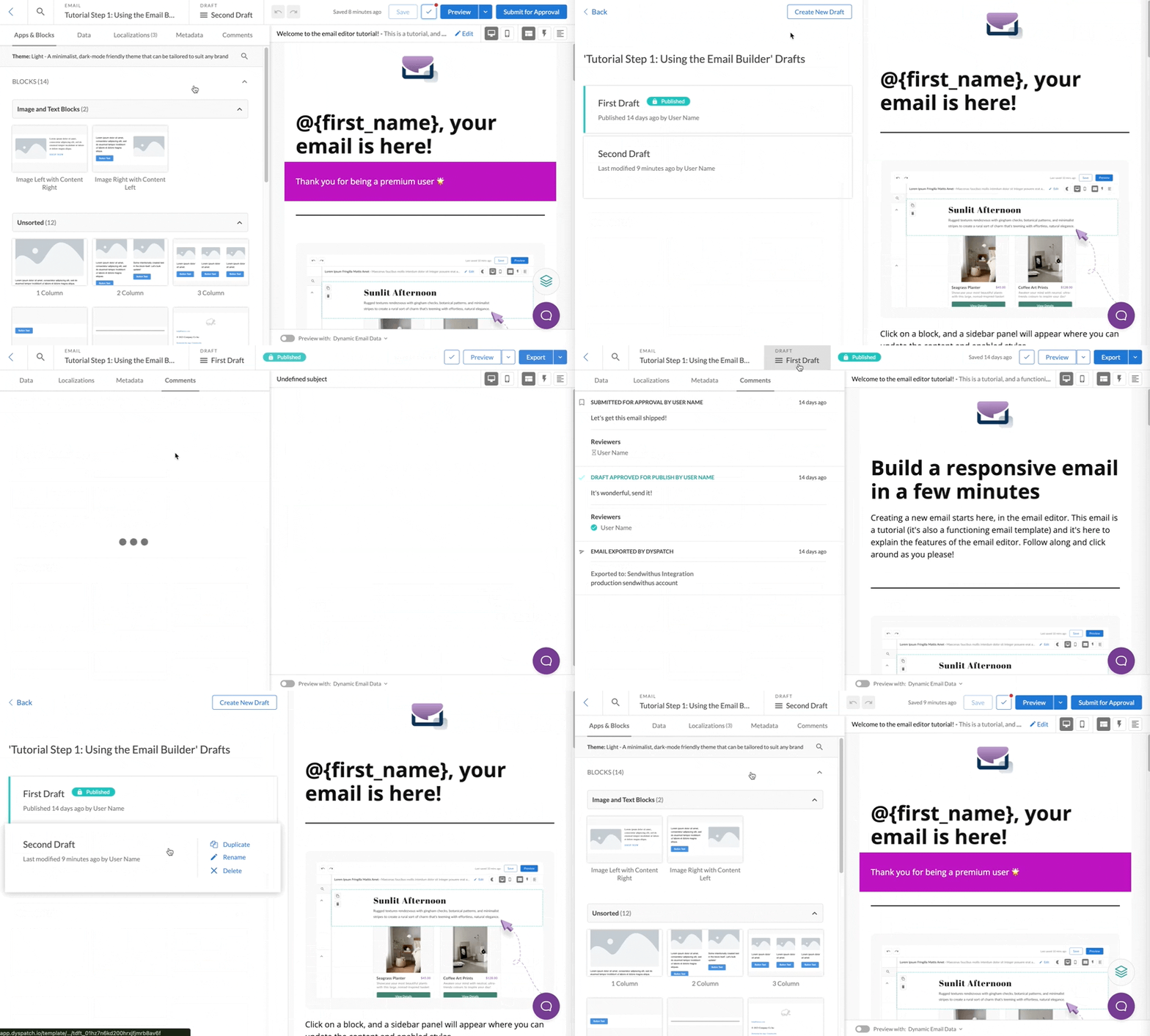 To create a new draft or view a list of existing drafts, click the draft name at the top of the email builder. You can also view previous revisions of the current draft by clicking the revision history icon. The top bar also includes the Preview button to test your email on a variety of devices and email clients with [device testing](/emails/testing_with_device_previews/), send a test email, and the option to submit your draft for approval. See more about the [submitting an email](/emails/submitting_an_email/).