# Exporting a Dyspatch Email to Adobe Campaign v8
After your email has been approved and published by your team, export it into Adobe Campaign v8. This guide will walk you through the process of preparing your Adobe Campaign project, exporting your email from Dyspatch, and locating your new Delivery in Adobe Campaign.
## Adobe Campaign Setup Requirements
### Create an Adobe Campaign Project in Adobe Developer Console
To enable Dyspatch to export to your Adobe Campaign instance, you must first set up a project with the correct API access.
1. On the Adobe Developer Console, navigate to the **APIs and services** section, and click the **Create project** button. This will create an empty project.

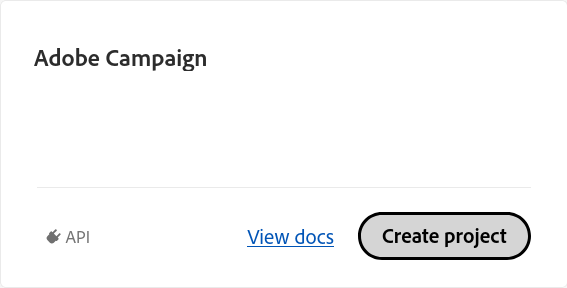 2. Add the Adobe Campaign API to your project by selecting the **Add service > API** option, and finding and clicking the "Adobe Campaign API" card.
Some export operations require the read_organizations OAuth scope, which may not be available with the Adobe Campaign API alone. To resolve this, add an additional API that includes this scope. For example, Globalization Content Service is one that provides this scope.
### Configure OAuth (Server-to-Server)
In the Adobe Developer Console, configure OAuth Server-to-Server credentials.
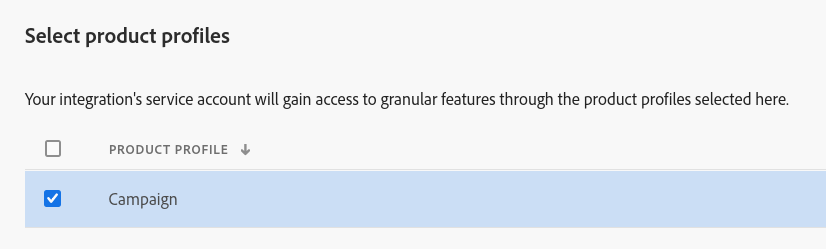
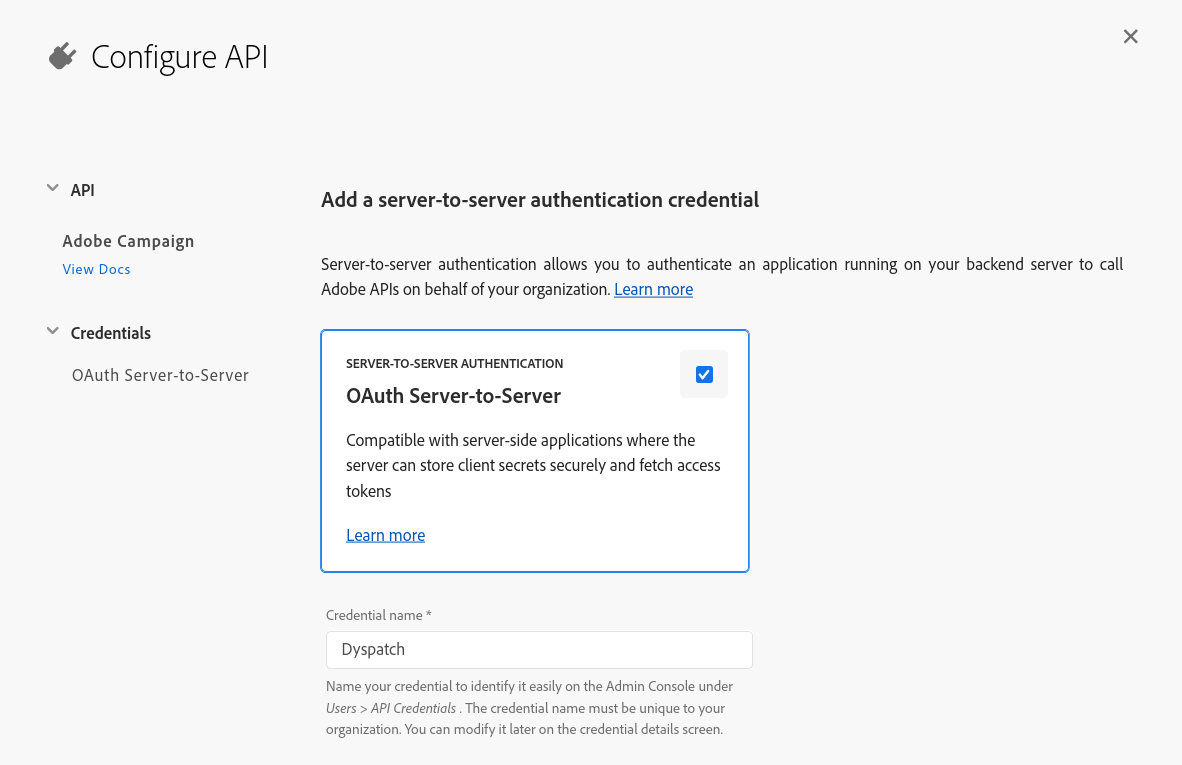 Select a product profile and enable Campaign.
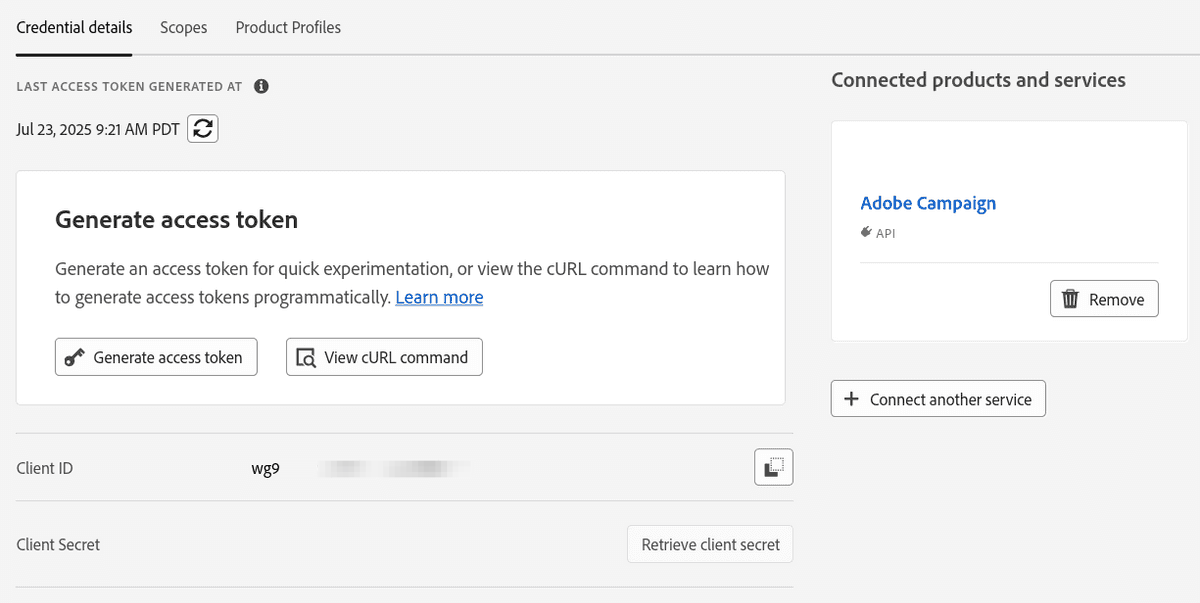
 Once generated, make note of your:
- Client ID
- Client Secret
These values will be added to Dyspatch later.
Once generated, make note of your:
- Client ID
- Client Secret
These values will be added to Dyspatch later.
 ## Setting Up the Adobe Campaign Integration in Dyspatch
Once your Adobe Campaign project is ready, configure the integration inside Dyspatch.
1. In **Dyspatch**, navigate to the Integrations page of the Admin Dashboard
2. Select **Add Integration**
3. Choose Adobe Campaign
4. Enter the following:
- **Client ID** (from Adobe Developer Console)
- **Client Secret**
- **Adobe Campaign Instance URL**
## Setting Up the Adobe Campaign Integration in Dyspatch
Once your Adobe Campaign project is ready, configure the integration inside Dyspatch.
1. In **Dyspatch**, navigate to the Integrations page of the Admin Dashboard
2. Select **Add Integration**
3. Choose Adobe Campaign
4. Enter the following:
- **Client ID** (from Adobe Developer Console)
- **Client Secret**
- **Adobe Campaign Instance URL**
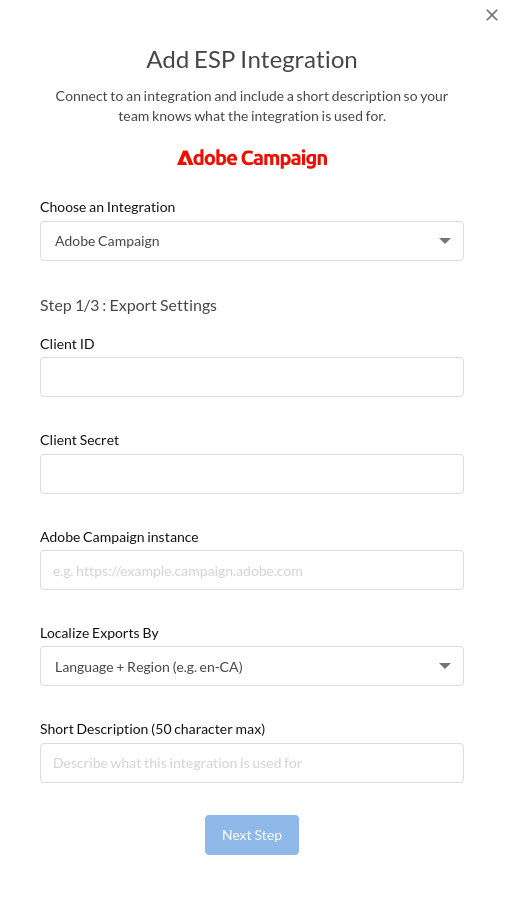 5. Under **Localize Exports By**, choose whether Dyspatch should export by: *Locale, or Language*.
- This must match the format used in the `recipient.language` field in Adobe Campaign.
After saving, your integration is ready for use.
## Exporting Your Email From Dyspatch
Once your email is approved and published, you can export it into Adobe Campaign as a *Delivery*.
1. Open your email in Dyspatch
2. Click the **Export** button and select the **Export to Integration** tab
3. Select the **Adobe Campaign** card
4. Select the Adobe Delivery Template you would like to use and click the **Confirm & Export** button
5. Under **Localize Exports By**, choose whether Dyspatch should export by: *Locale, or Language*.
- This must match the format used in the `recipient.language` field in Adobe Campaign.
After saving, your integration is ready for use.
## Exporting Your Email From Dyspatch
Once your email is approved and published, you can export it into Adobe Campaign as a *Delivery*.
1. Open your email in Dyspatch
2. Click the **Export** button and select the **Export to Integration** tab
3. Select the **Adobe Campaign** card
4. Select the Adobe Delivery Template you would like to use and click the **Confirm & Export** button
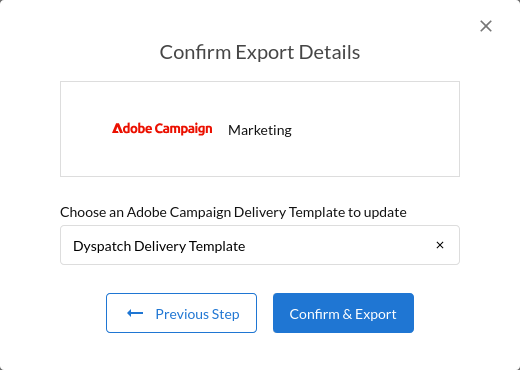 Dyspatch will generate a single Adobe Campaign Delivery containing all of your template’s localizations, using EJS conditionals based on the `recipient.language` field.
## Finding Your Email in Adobe Campaign
After a successful export:
1. Log into your Adobe Campaign instance
2. Navigate to the **Deliveries** section
3. Open the **Delivery** folder where the existing Delivery Template is located
4. The Delivery Template should now be updated with the latest content from Dyspatch
This **Delivery** will contain:
- The full HTML email
- All localized variants (wrapped in EJS logic)
- Metadata included in the Dyspatch export
Dyspatch will generate a single Adobe Campaign Delivery containing all of your template’s localizations, using EJS conditionals based on the `recipient.language` field.
## Finding Your Email in Adobe Campaign
After a successful export:
1. Log into your Adobe Campaign instance
2. Navigate to the **Deliveries** section
3. Open the **Delivery** folder where the existing Delivery Template is located
4. The Delivery Template should now be updated with the latest content from Dyspatch
This **Delivery** will contain:
- The full HTML email
- All localized variants (wrapped in EJS logic)
- Metadata included in the Dyspatch export