# Crowdin Integration Setup
Manage your Dyspatch translations in Crowdin with Crowdin's Dyspatch Connector application
## Connecting your Dyspatch account to Crowdin
### Install Dyspatch Connector in Crowdin
To connect your Crowdin enterprise or Crowdin.com account account to Dyspatch, install the Dyspatch connector in Crowdin by selecting **Marketplace** and searching for **Dyspatch**.
### Connect Crowdin Project to Dyspatch
Once installed, navigate to a Crowdin project, select **Integrations**, search available apps for **Dyspatch**, then click the Dyspatch logo. You will be prompted to enter a Dyspatch API key.
#### Create Dyspatch API Key
In Dyspatch, select **Generate API Key** From the Developer Tools dashboard. Name the key, select **Read & Write** for the permissions, then **Generate Key**.
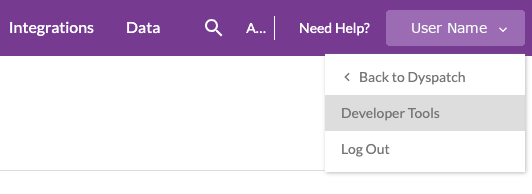
View our [Creating an API Key doc](/administration/creating_api_keys/) for more a more detailed walkthrough.
For security reasons, your API key will only be shown once. Please store your API keys in a safe and secure place as lost keys cannot be retrieved.
#### Add API Key to Crowdin Connecector
Copy the API key from Dyspatch and paste it into Crowdin to connect the accounts.
## Sync Translations to Crowdin Project
Using the Crowdin Integration, translations are managed in the Crowdin app, rather than in Dyspatch. View Crowdin's Dyspatch Connector Doc and video to see more on using Crowdin with Dyspatch.