# Verifying Pending Emails Before Publishing
Admins can access the administrator inbox to view drafts currently pending approval in their organization. Workspace Owners can request changes or approve pending drafts by viewing the email in their workspace. Approved emails can be downloaded and exported, as well as sync'd in the Dyspatch API.
View details about User Roles.
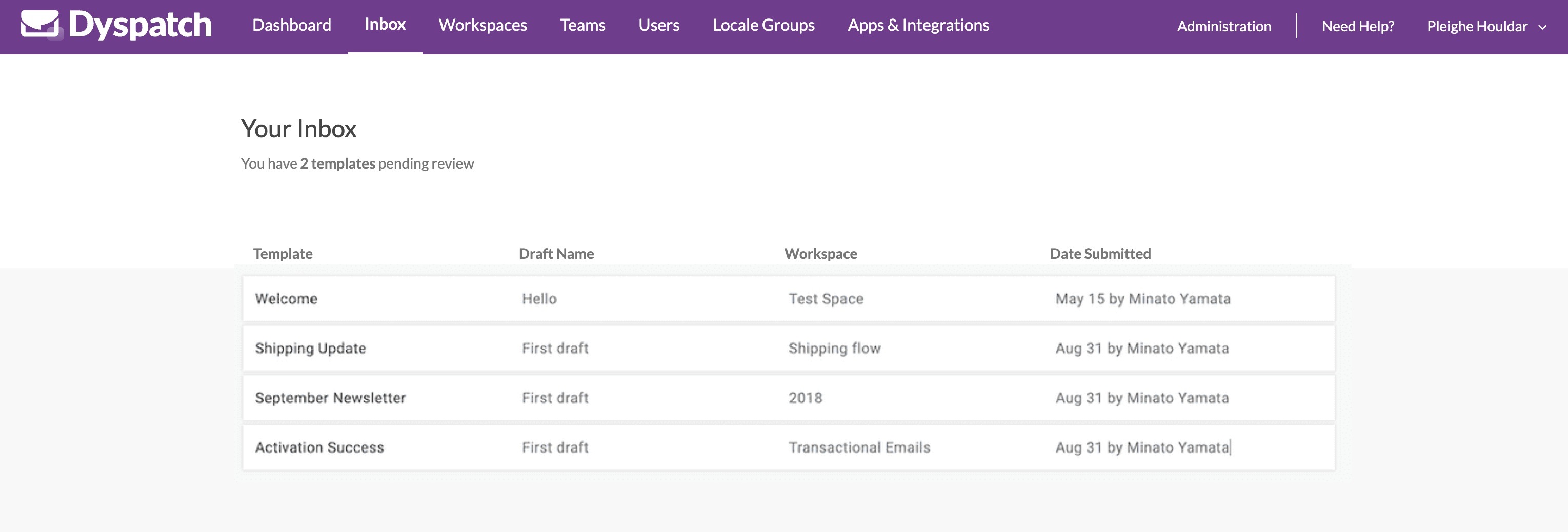
Selecting an email from the administrator inbox will take you to the email editor screen.

Select **Preview** to send a copy of the email to yourself or to preview the email on different email clients and devices.
Select **Feedback** to **Reject** or **Approve** the email.
### Requesting Changes

When modifications are needed, request changes on the email by including a comment and selecting the **Reject** button. This will email users assigned to that Workspace that a change has been requested. It will also drop the draft out of the **Submitted** stage, making it editable again.
### Approval
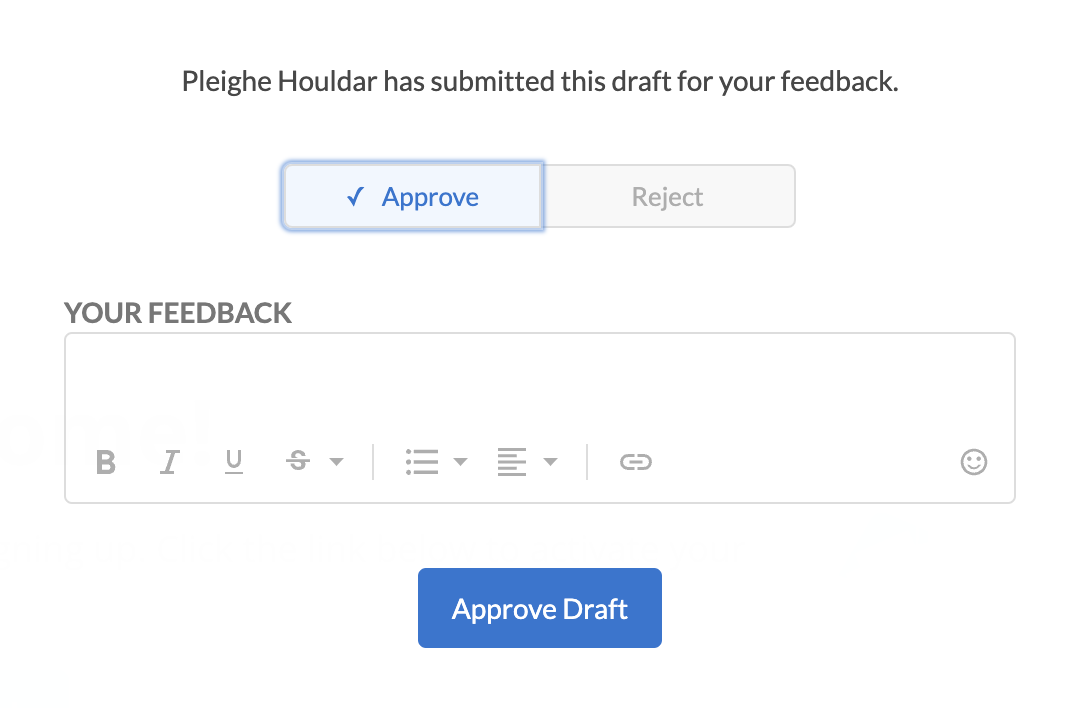
If everything on the email looks great, select the **Feedback** button and choose **Approve**. Once the draft is approved, it becomes the new published email and the email's content is locked to prevent any changes. The content of the email can now be exported and will be available via the API. Click here to learn more about the Dyspatch API.