# Creating Blueprints
Blueprints are pre-built, reusable base templates for your team that streamline the email creation process.
Using a blueprint will ensure that every email conforms to pre-approved design patterns, and is guaranteed to work on every device and email provider. Blueprints allow you to essentially skip the drag-and-drop build process, jumping straight into adding custom imagery and copy.
## Creating a Blueprint
There are two ways to create blueprints in Dyspatch.
- [Create a blueprint from scratch](#create-a-blueprint-from-scratch)
- [Turn an existing email into a blueprint](#create-a-blueprint-from-an-email)
### Create a Blueprint from Scratch
Creating a blueprint is as straightforward as building an email in Dyspatch, with the added benefit of being reusable every time your team needs to create a new email.

Select **Blueprints** from the Dyspatch home page menu then click **Create Blueprint**. Name your blueprint and optionally add a description for your team.

In **step 2**, toggle on which themes you'd like to use this blueprint with.

For a blueprint to be available for users to select when creating new emails, it needs to be added to a theme. A blueprint’s styling will be inherited from the theme, so you can reuse the same blueprint across many themes
#### Adding Blocks to a Blueprint
Drag and drop blocks into your blueprint then style them the same way you would when building an email.
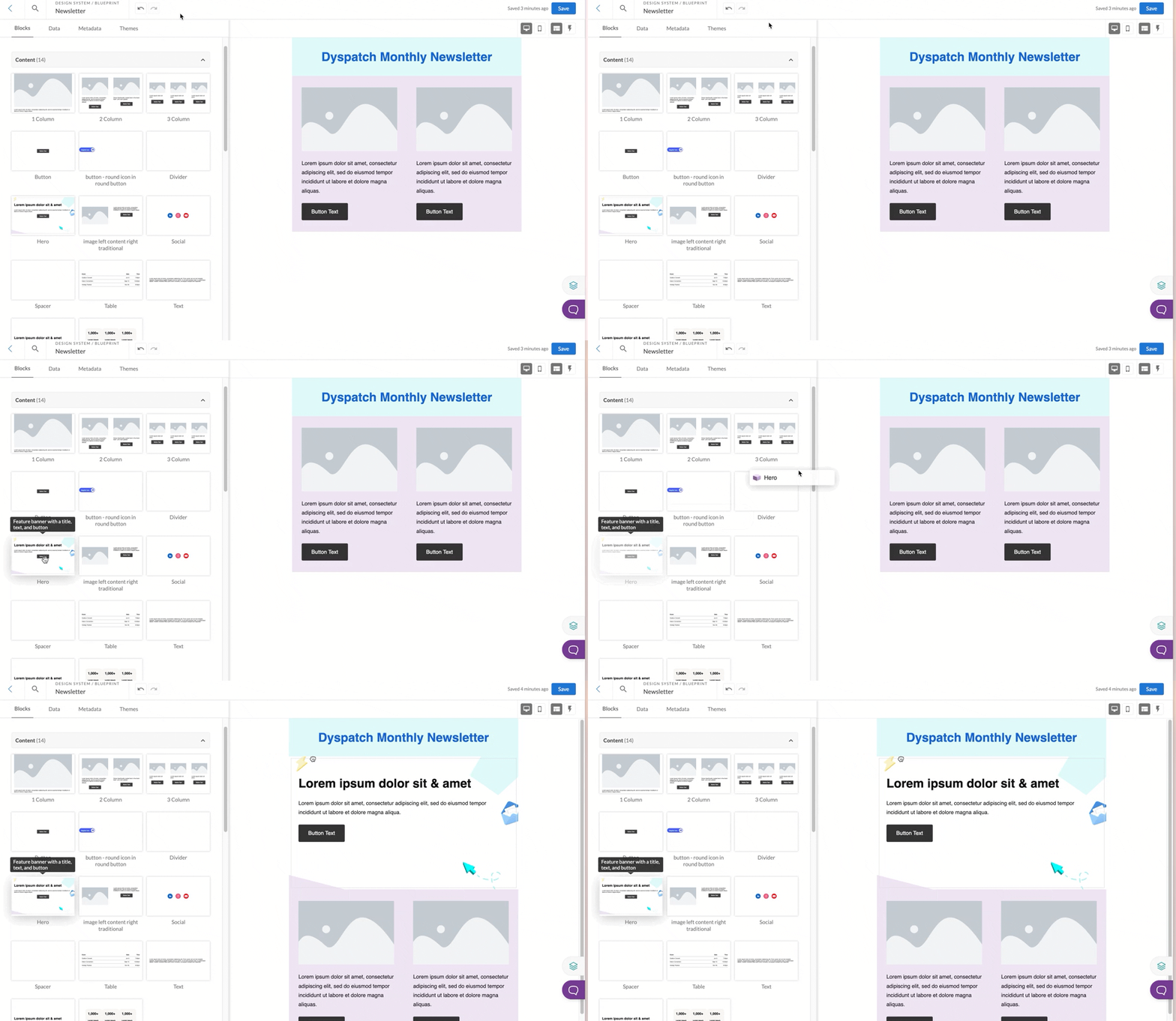
Only blocks available in your blueprint's active themes will be available to build with
##### Additional Blueprint Attributes
Many of the same features available for individual emails are also available for blueprints, such as:
- Metadata, such as sender details
- Project links
- Preview data
- Theme selection
- And AMP State
When added to the blueprint, these attributes are automatically added to each new email created from the blueprint.
### Create a Blueprint from an Email
Have an email in Dyspatch you'd like to reuse? Turn it into a blueprint!
From the Email Builder, click the save dropdown menu and select **Save as Blueprint**.

The save as blueprint modal allows editing the name and description, selecting what details to include, assigning the blueprint to multiple themes, and the option to replace all content with placeholders.

#### Replacing all content with placeholders
Selecting this option will replace all edited values in the email with the default values from each block.
## Creating an Email From a Blueprint
After choosing the workspace and theme for your new email you will be given a list of blueprints to select as a starting point.

*Voila!* Your blueprint is now an email, ready for you to update any copy or other assets as needed.
## Frequently Asked Questions
- **Why don't I have my blueprint as an option when I create a new email?**
It's possible that the blueprint isn't enabled for the theme of your new email. Navigate to your blueprint and enable the correct theme from the *Themes* tab.
- **Can I bulk update a block used in a blueprint?**
[Bulk updates to blocks](/blocks_and_themes/bulk_updating_blocks) will be applied to an email created with a blueprint the same as any other email.
- **Can I bulk update emails created with a blueprint?**
Any edits to your blueprint will not affect emails previously created with that blueprint.
- **Can I add a block to the blueprint that's not available in all of the blueprint's active themes?**
If a block that does not have all the same themes active as the blueprint, you will be prompted with the option to either *add the block to the blueprint and all the blueprint's themes*, or to *cancel* adding the block to the blueprint.
- **Why don't I see a block in the blueprint builder that I know is in my account?**
It's possible that the blueprint and the block don't have at least one active [theme](/blocks_and_themes/styling_with_themes) in common.