# Testing your Email with Template Data
Use the Data tab in the Dyspatch Email Builder to power in your email previews.
Template Data can be built using the data builder or added as a JSON object, similar to what your system might use when passing data to an email for rendering.
Template Data is similar to
Customer Profiles, each is data your team enters into Dyspatch to preview dynamic content. Template Data is unique to the template it is stored in, whereas Customer Profiles are available in all workspaces they're assigned to.
Dynamic Data values are only for previewing variable content in Dyspatch, their values will not be used in your live emails
## Enabling and Disabling Template Data
Toggle **Template** data on or off in the Preview Data tab to control whether this email's Template Data is applied to your preview. This works alongside **Global** and **Customer Profiles**.
Toggling off all Dynamic Data types will turn off conditional preview rendering and show all conditional blocks
## Using Template Data in Emails
Once you have configured your template data, you can now reference these data points in your email. In a particular field, type the `@` symbol to bring up a list of your predefined varaibles.
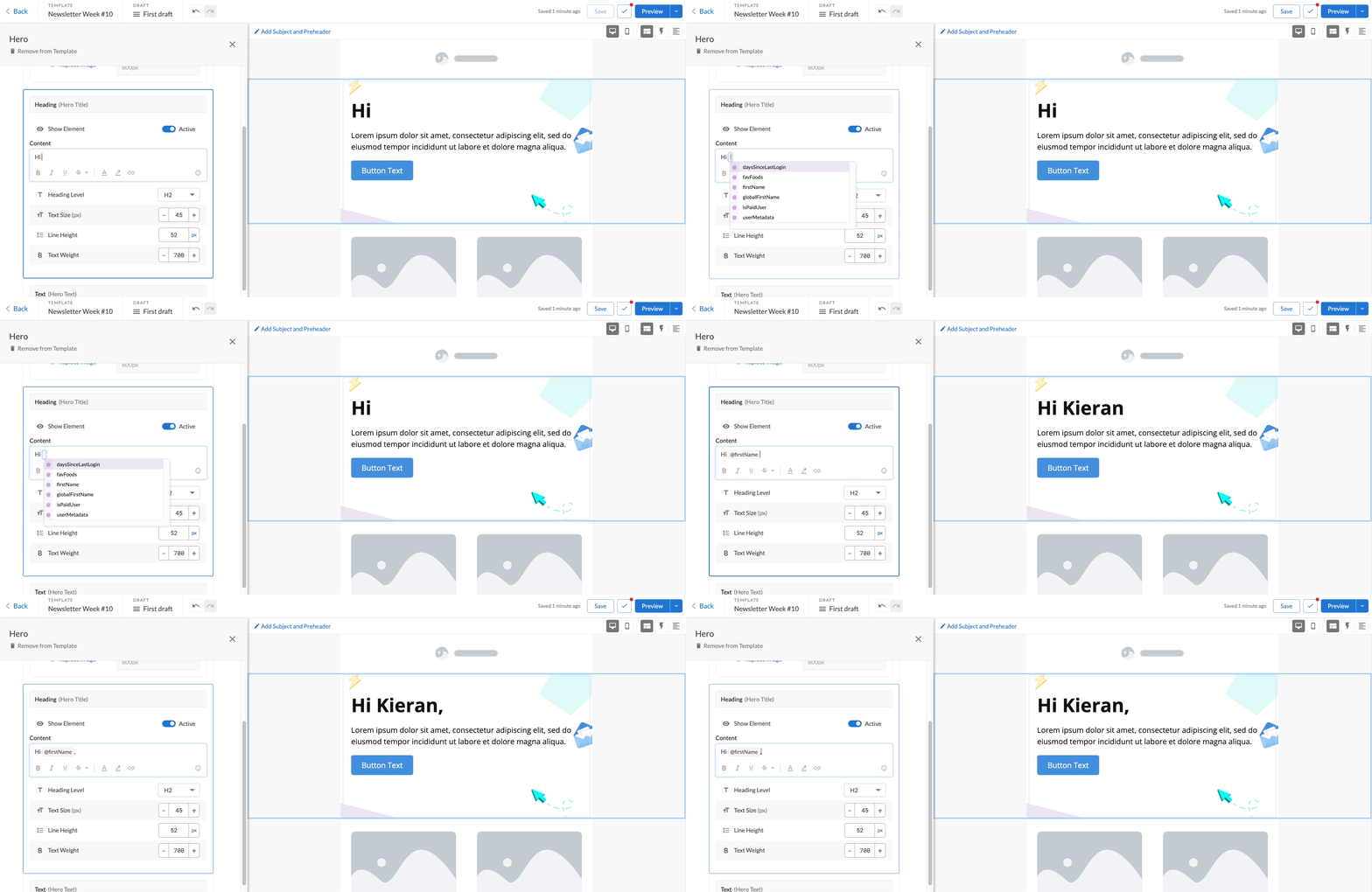
Variables from a selected Customer Profile and from Global data also show in the input variable autocomplete
### Combining Dynamic Data Types
Template Data, [Global Variables](/emails/using_customer_profiles/#using-global-variables), and [Customer Profiles](/emails/using_customer_profiles/) can all be active at the same time. When more than one source is enabled, their data is merged — with Customer Profile values taking priority over Template and Global data when the same key appears in multiple sources.
Each source can be toggled independently in the **Data** tab, giving you fine-grained control over what data is applied to your preview at any time.
Turning off both Template and Global data, with no Customer Profile selected, also turns off conditional block rendering — every block in your preview will show regardless of its display logic. Turning any of the three back on re-enables conditional block rendering, indicated by a green dot next to the Data tab.
See [Enabling and Disabling Dynamic Data Previews](/emails/using_customer_profiles/#enabling-and-disabling-dynamic-data-previews) for more detail on how the three sources combine.
## Next Step: Creating Personalized Emails
By adding robust data to your Template Data, you can use personalization and [conditional content](/emails/using_conditionals/) to tailor your customer's emails and feel good about personalizing emails with more dynamic content.