# Push Notification Guide


Connect with your customers where they're at by creating dynamic and personalized push notifications.

Push notifications include title and content sections which can include text, emojis, and [personalized content](#personalizing-push-notifications).

## Creating a Push Notification
From your [Dyspatch dashboard](https://app.dyspatch.io/workspaces), or from a workspace folder, select **Push** from the **Create** dropdown menu.

![Create new Push menu option](https://docs.dyspatch.io/img/push/push-create.png)

Select a workspace for your push notification, give it a name, and an optional description.

![Create a push notification page with workspace, name, and description options](https://docs.dyspatch.io/img/push/push-name-crop.png)

Include a Title, Content, and any [Conditional Display rules](#create-a-push-notification-variant) in the push notification builder.

![Push notification being built in the Push notification builder](https://docs.dyspatch.io/img/push/push-create-notification.png)

## Personalizing Push Notifications
Use [DML Variables](/dml_101/part3_templating/#dml-templating) to include dynamic content to your push notifications. Include sample data on the **Personalize** tab, or use your organization's [customer profiles](/emails/using_customer_profiles/). All DML variable key names are enclosed in `@{}`.

![Push notification with dynamic DML variables, being previewed with dynamic data](https://docs.dyspatch.io/img/push/push-preview-personalization.png)

Preview your personalized variables by toggling on **Preview Dynamic Data** from the **Personalize** tab.

![Arrow pointing to the preview dynamic data tab in the push notification builder](https://docs.dyspatch.io/img/push/push-data-preview.png)

View more on [testing with preview data](/emails/testing_your_email_with_preview_data/).

## Creating Push Notification Conditionals
Create push notification variations and apply conditions to ensure the right customer receives the right notification.

### Create a Push Notification Variant
To use conditional logic to display customized notifications, create a variant for each possible message a user could receive. 

Select **Create variant** below the last variant in the list and modify the content.

![Arrow  pointing to the create variant button in the push notification builder](https://docs.dyspatch.io/img/push/push-create-variant.png)

### Add a Conditional Display Rule for Each Push Variant

Select the **Edit Conditional** button next to a variant to bring up the conditional builder.

Select **Add Logic** and include the condition to display that variant when equated to true. In the following example, if the customer's data includes *member_status* and it is *basic*, they will be shown *Variant 2*.

![Conditional example displaying variant 2 if member_status is equal to basic](https://docs.dyspatch.io/img/push/push-variant-elseif.png)

<div class="highlight tip">A common practice is to include an <b>else</b> fallback to catch all remaining instances</div>

## Push Character Counts
Character counts let you know when your content is likely to be excluded from an expanded notification preview.

![Notification title character count in the push notification builder](https://docs.dyspatch.io/img/push/push-notification-title-characters.png)

While character counts can be exceeded, that may result in content spilling outside of the customer's expanded notification.

<div class="highlight tip"><a href="#personalizing-push-notifications">Dynamic Variable</a> lengths cannot be calculated. Be sure to test a variety of possible data sets</div>

## Localizing Push Notifications
Use the **Localizations** tab to add translations to push notifications.

<div class="highlight note">If your organization uses the two-step localization approval process, localizations will be added after the content has been approved. See more on the <a href="/emails/submitting_an_email#localization-approval-workflow">localization approval workflow here</a></div>

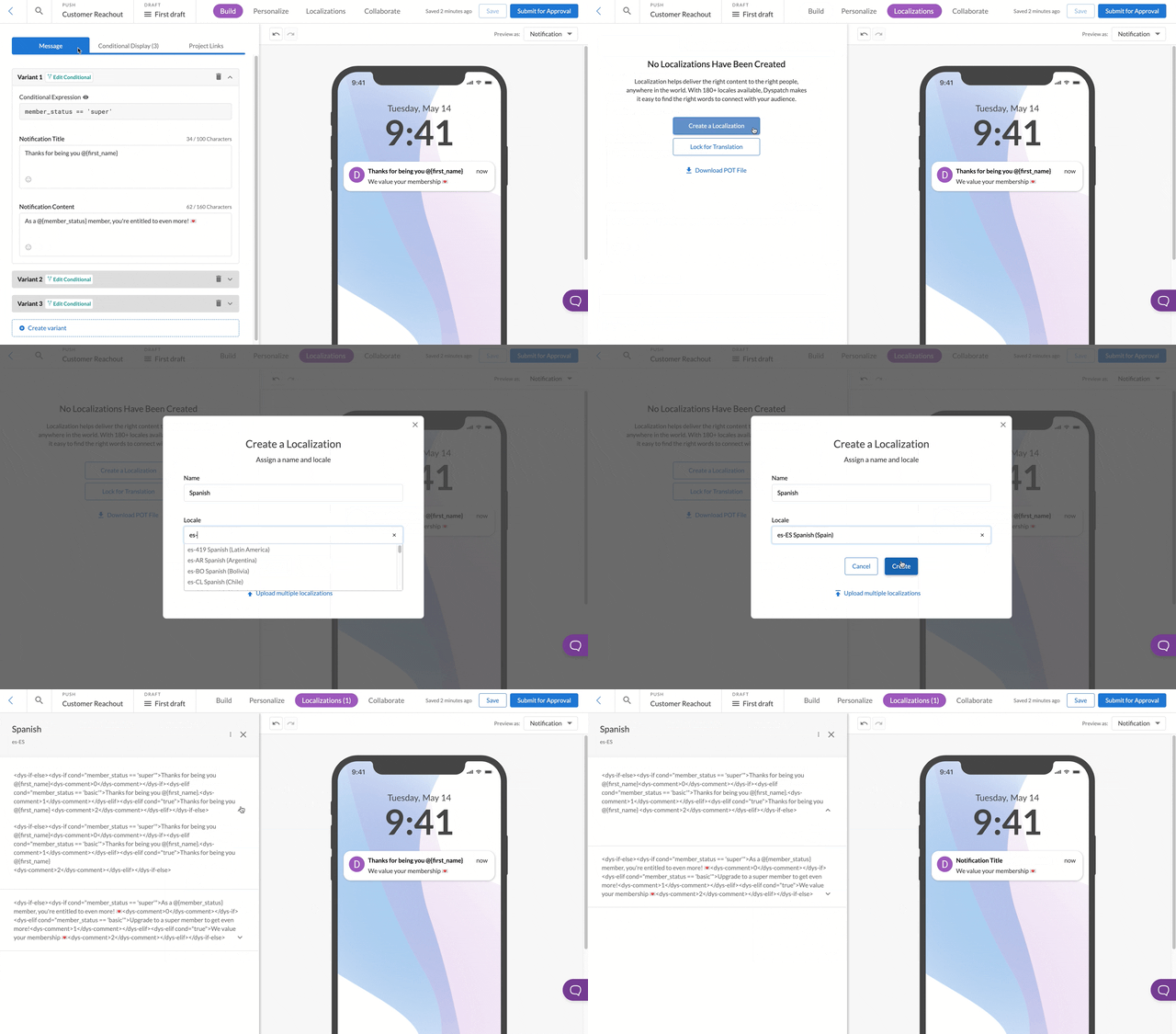
Navigate to the Localizations tab in the push builder to create a new localization. Select a language and give the localization a name that your team will recognize. This name is for your reference only and can follow any naming convention that works for your team.

![Create a localization modal with French selected](https://docs.dyspatch.io/img/emails/localization-create.png)

Select a locale from the list, click on the section of text you'd like to add translations for, and edit the content in the locale dropdown, working within the conditional statements of the content.

<img class="img-border" src="https://docs.dyspatch.io/img/push/push-add-locale.gif" alt="Adding locale of Spanish with es-ES language code, then clicking in to edit the translation content" />

<div class="highlight tip">Find more localization tips and learn how to integrate your account with Phrase, Smartling, or XTM translation services on the <a href="https://docs.dyspatch.io/localization/" target="_blank">Localization doc list</a></div>

### Project Links
Include any external files, such as style or copy guides, to ensure everyone involved is using the same reference material.

![Project Link modal](https://docs.dyspatch.io/img/sms/sms-project-link.png)

## Collaborate with Comments
Working in teams is what it's all about! Get input from stakeholders to make your push notifications effective.

Anyone on your team can add comments at any time during the building process. Mention team members with the `@` symbol, resolve comments, see comment history, and check approval state changes all from the **Collaborate** tab.

![A comment on a push notification requesting an edit to a notification variable](https://docs.dyspatch.io/img/push/push-comment.png)

## Approval Process
Submit your push notification for feedback and approval from team members and stakeholders before publishing.

![Submit a push notification modal with Comment and Assign Approvers options](https://docs.dyspatch.io/img/emails/submitting-submit.png)

Once submitted, your draft will be locked in the **Submitted** state. An organization admin or workspace owner will either **reject** the draft with feedback for changes, making it editable again, or **approve** the draft. Approved drafts are then locked **Approved** state.

<div class="highlight note">Org admins and workspace owners are able to <a href="/emails/submitting_an_email/#skip-approval-and-publish/">skip approval and publish</a></div>

For more details on the approval process:
- [Submitting an email for approval](/emails/submitting_an_email/)
- [Draft statuses](/emails/email_statuses/)
- [localization approval workflow](/emails/submitting_an_email#localization-approval-workflow)

## Export Push
Congratulations! Your push notification has been approved!

Click **Export** in the top right of the push builder for a list of templating languages to either **Download** or **Copy** your notification as. Upload the push notification code to your service of choice.

![Download push modal with templating language options django, handlebars, jinja, liquid, and handlebars.java](https://docs.dyspatch.io/img/push/push-download-options.png)