# SMS Guide
Create complex, highly personalized SMS campaigns with our new SMS builder.
## Create a New SMS
From your [Dyspatch dashboard](https://app.dyspatch.io/workspaces), or from inside a Workspace, select **SMS** from the **Create** dropdown menu.

### Add SMS Message Content
Add text, links, images, and dynamic variables in the SMS builder.

#### SMS Character Count
The SMS character counter helps you keep your messages within strict SMS character limits.

Check with your messaging service to verify their message character limits.
Dynamic Variable lengths cannot be calculated. Be sure to test a variety of possible data sets
### Preview Message as Notification
SMS messages are often displayed first as notifications, so previewing your first impression is a big deal. Select **Notification** from the "Preview as" menu in the SMS builder to get a glimpse of how your SMS might be seen in the wild.

### Images in SMS
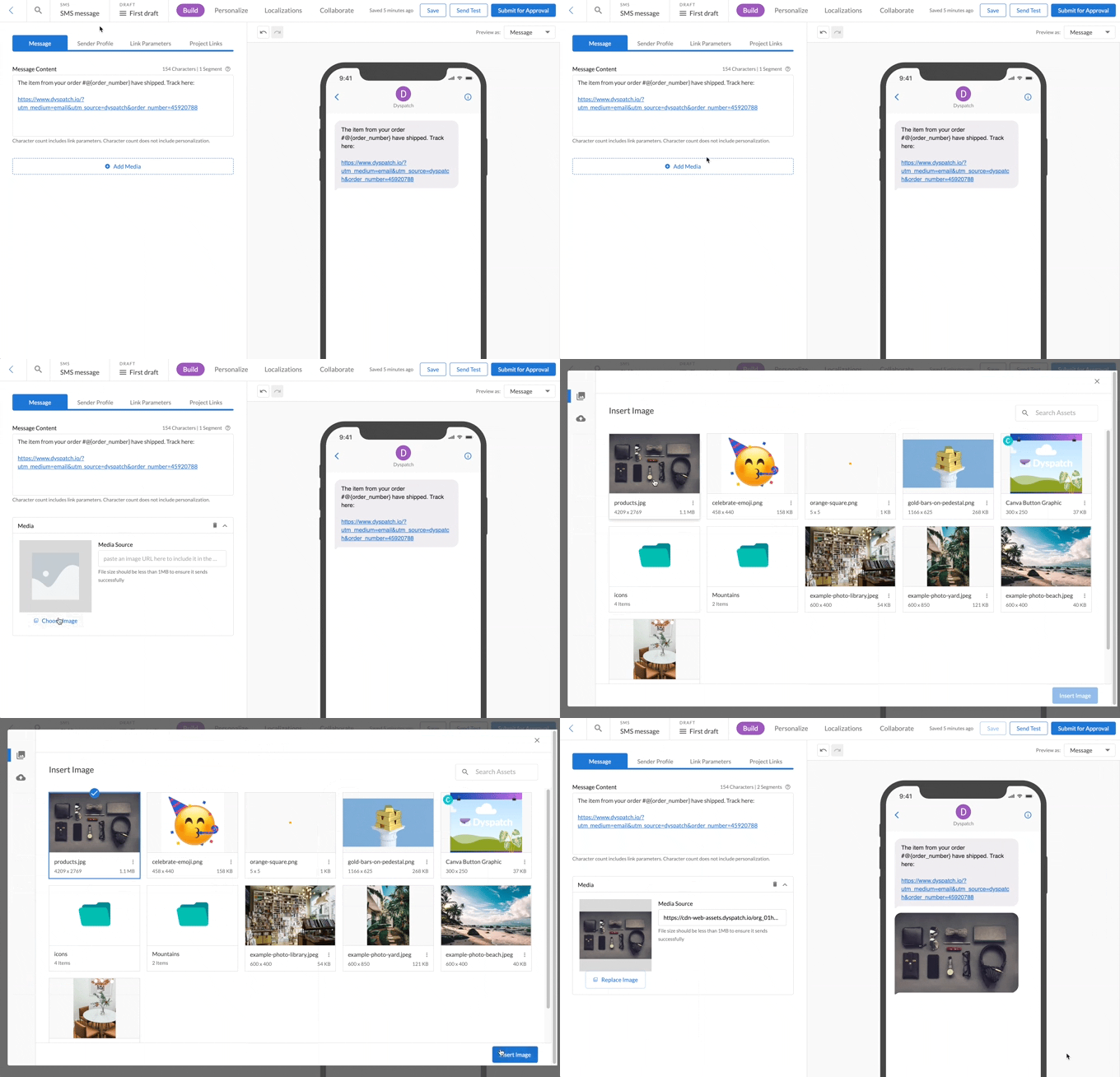
To include images in your SMS, select the **Add Media** button in the SMS builder. Pick from any image in your Dyspatch Image Library, or choose **Upload Images** to drag and drop a file from your computer.
 ### SMS Sender Profile
Add your **Sender Name** and **Phone Number** under the **Sender Profile** tab. This information will be included in your export to be used by your SMS service.

### Links in SMS
Insert any URL or short link directly into the message content. It is common to create short links for any long urls, since SMS has limited characters.

### SMS Sender Profile
Add your **Sender Name** and **Phone Number** under the **Sender Profile** tab. This information will be included in your export to be used by your SMS service.

### Links in SMS
Insert any URL or short link directly into the message content. It is common to create short links for any long urls, since SMS has limited characters.

Note: Hyperlinks are not supported in SMS.
Learn how to set [Link Parameters](/sms/localization_in_sms/) for all links in a message and entire Workspaces.
## Creating SMS Conditionals
Create message variations and apply conditions to ensure the right customer receives the right content.
### Create a SMS Variant
To use conditional logic to display specific message variants, create a variant for each possible message a user could receive.
Select **Create variant** below the last variant in the list and modify the content.

### Add a Conditional Display Rule for Each SMS Variant
Once your variants are created, select the **Edit Conditional** button next to a variant to bring up the conditional builder.
Select **Add Logic** and include the condition to display that variant when equated to true. In the following example, if `order_number != ""` in the customer's data, they will be shown *Variant 1*. *Variant 2* has a condition of `else` and will be shown if all conditionals equate to false.

To ensure a fallback is provided, your final variant will be included with anelse condition
## Project Links
Include any external files, such as style or copy guides. This ensures everyone involved is using the same reference material.

## Collaborate with Comments
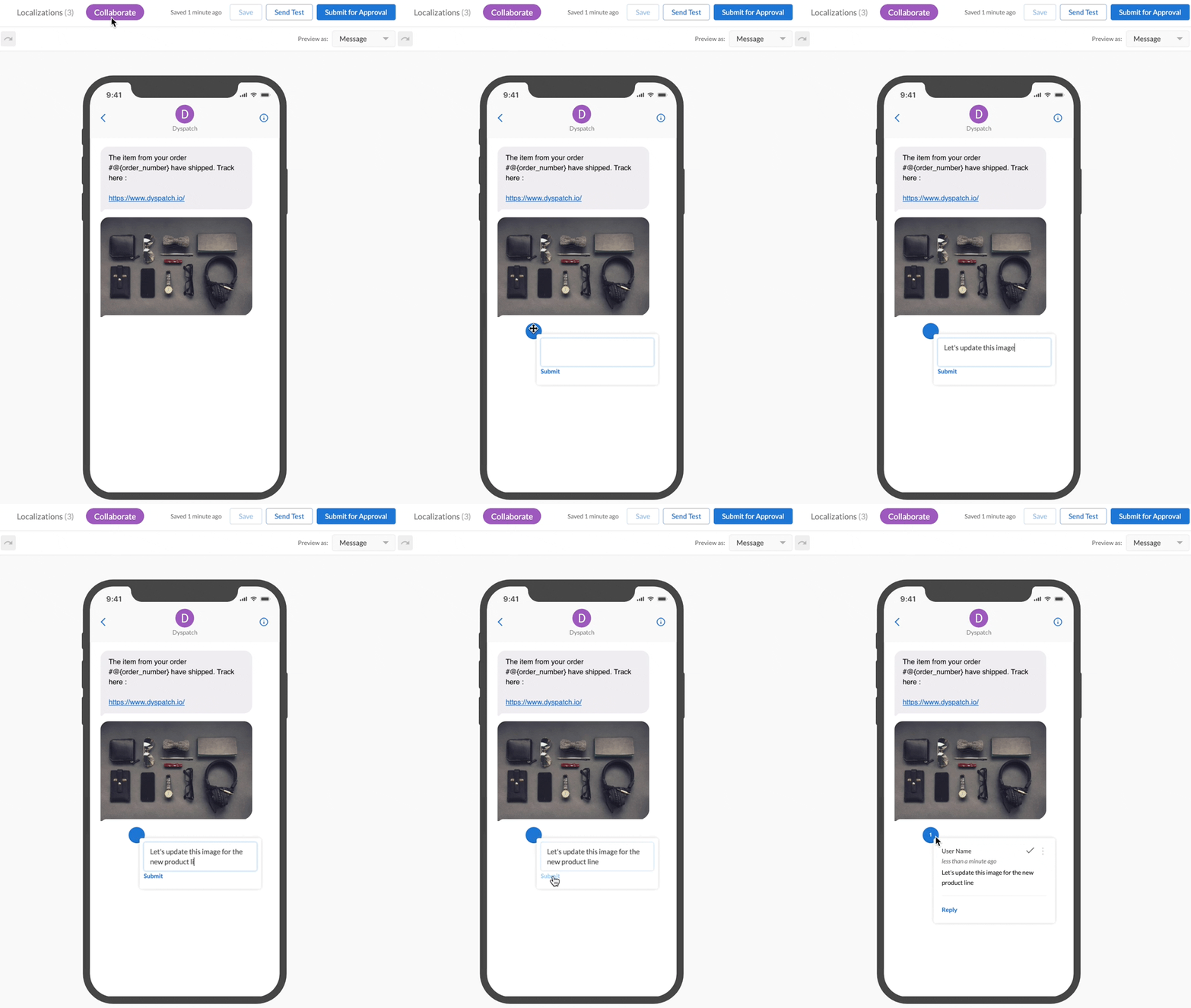
Working in teams is what it's all about! Get input from stakeholders to produce the most engaging and informative SMS content possible!
Anyone on your team can add comments at any time during the building process. Mention team members with the `@` symbol, resolve comments, and view comment history to maximize your efforts.
 ## Approval Process
Submit your SMS for feedback and approval from team members and stakeholders before publishing.

Once submitted, your draft will be locked in the **Submitted** state. Someone will either **reject** the draft, making it editable again, or **approve** the draft. Approved drafts are in the locked **Approved** state.
For more on the approval process:
- [Submitting an email for approval](/emails/submitting_an_email/)
- [Draft statuses](/emails/email_statuses/)
## Export SMS
Congratulations! Your SMS has been approved and is ready to be added to your SMS service.
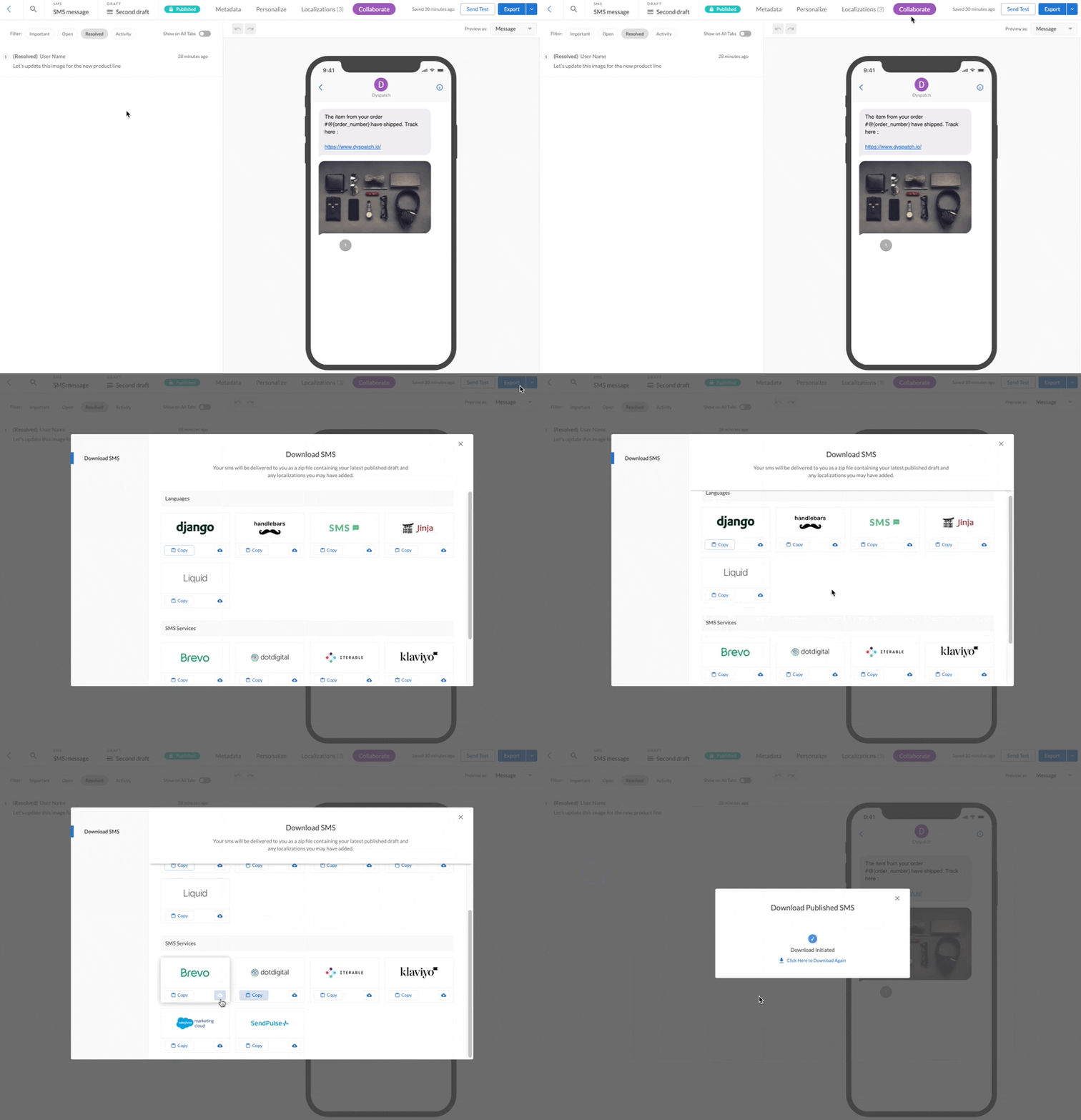
Click **Export** in the top right of the SMS builder.
Pick from a selection of templating languages and SMS services and either **Download** or **Copy** your SMS in the format you need. Upload the code to your SMS service and voila! Your SMS is ready to go!
## Approval Process
Submit your SMS for feedback and approval from team members and stakeholders before publishing.

Once submitted, your draft will be locked in the **Submitted** state. Someone will either **reject** the draft, making it editable again, or **approve** the draft. Approved drafts are in the locked **Approved** state.
For more on the approval process:
- [Submitting an email for approval](/emails/submitting_an_email/)
- [Draft statuses](/emails/email_statuses/)
## Export SMS
Congratulations! Your SMS has been approved and is ready to be added to your SMS service.
Click **Export** in the top right of the SMS builder.
Pick from a selection of templating languages and SMS services and either **Download** or **Copy** your SMS in the format you need. Upload the code to your SMS service and voila! Your SMS is ready to go!
 ## Additional SMS Resources
- [Localize SMS content](/sms/localization_in_sms/)
- [Dynamic content in SMS](/sms/dynamic_content_sms/)
- [SMS Link parameters](/sms/sms_link_parameters/)
## Additional SMS Resources
- [Localize SMS content](/sms/localization_in_sms/)
- [Dynamic content in SMS](/sms/dynamic_content_sms/)
- [SMS Link parameters](/sms/sms_link_parameters/)