# Getting Started


# Building Emails In Dyspatch

Get started with Dyspatch to supercharge collaboration with your team, decentralize email creation, and speed up the production of beautiful emails.

This article will cover the fundamentals of Dyspatch. It will walk through creating, testing, and exporting an email with our email builder to help get you started right away.

Note: Any words with the <glossary-term word="dotted underline"></glossary-term> will provide more information when hovered.

## Creating a New Email
Let's create a new <glossary-term word="email"></glossary-term>. Select the **Create Email** button from your dashboard.

![Inside your dashboard screenshot with Create Email button showing](https://docs.dyspatch.io/img/emails/create-email.png)

Select the <glossary-term word="workspace"></glossary-term> and enter a unique name for the email.

![Create an Email form](https://docs.dyspatch.io/img/emails/new-email-form.png)

#### Choosing a Theme
Select what <glossary-term word="theme"></glossary-term> to use with your email. Hover over the word <glossary-term word="theme"></glossary-term> to learn more.

![Image of the themes Elementary - Dark, and Elementary - Light that are loaded into all new accounts and are free to use and customize](https://docs.dyspatch.io/img/emails/getting-started-themes.png)

#### Choosing a Blueprint
If your theme has any [blueprints](/emails/creating_blueprints) assigned to it you will be given a list of available blueprints. Select a blueprint as a starting point or select **Start from Scratch**.

![Newsletter blueprint highlighted as an option when creating a new email](https://docs.dyspatch.io/img/emails/select_a_blueprint.png)

## Using the Email Builder
<img class="img-border" src="https://docs.dyspatch.io/img/emails/email-builder-drag.gif" alt="Drag and drop a block into the preview section to build your email"/>

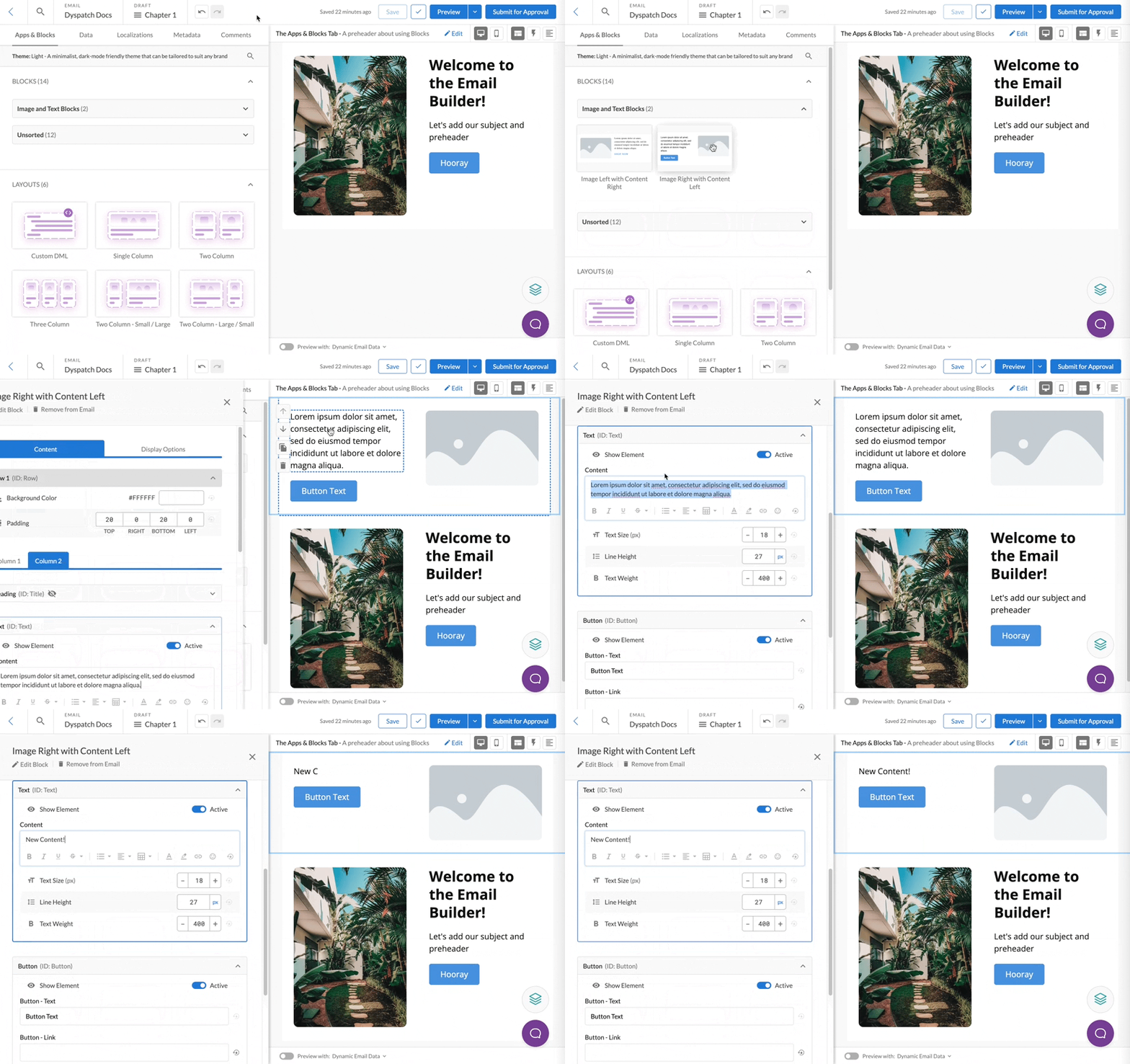
Drag and drop a <glossary-term word="block"></glossary-term> from the block library on the left to add it to the Email. Click on a block in the preview pane to customize the content in the block.

#### Editing Blocks
Content like text or images can be made editable to maximize a block's reusability in the email builder. A block with editable components can be dropped into the email builder multiple times and each instance of the block can be customized with different content to build up your emails fast.

Blocks that need to be consistent across all emails, like a footer with legal text, can be set up without editable content. This way, the block's details can't be edited in the email builder and anyone in your team can feel empowered to build and update emails without affecting compliant content.

<div class="highlight tip">
	<strong>Need more blocks?</strong><br/>
	Create your own custom blocks with the block editor! Blocks are made using Dyspatch Markup Language (<glossary-term word="DML"></glossary-term>), your one-stop-shop for creating new blocks. It has logic, personalizations, and best of all: it simplifies mobile-first email HTML, so you can write less code and be sure it will work across devices and email clients. Check out our article on <a href="/blocks/building_blocks/">block building</a> to learn more.
</div>

## Testing an Email

Want to see how your email will look when a customer opens it? Click **Preview** to open the testing suite and test your email in any of the 90+ available devices.

![Preview your email with dynamic data by selecting a Customer Profile from the dropdown](https://docs.dyspatch.io/img/emails/customer-profile-preview.png)

<div class="highlight tip">Using dynamic content? Select dynamic data or a <a href="/emails/using_customer_profiles/">customer profile</a> from the dropdown to preview your email with one of your organization's sample customer profiles</div>

Next, select a preset list of common devices to preview, or select devices individually, then click **Generate Previews**.

![A list of devices a user can test an email with](https://docs.dyspatch.io/img/emails/device-preview-options.png)

Your email preview will be generated in all of the email clients you selected.

![Multiple cards with device previews displayed inside](https://docs.dyspatch.io/img/emails/device-previews-ready.png)

Testing in Dyspatch saves your team time and ensures your emails are consistent across clients. Free trials are set up with 100 previews to get you started with testing your emails.

Alternatively, send the email to you and your team's inboxes to preview.

![Menu to add emails of your team to a preview test send](https://docs.dyspatch.io/img/emails/send-preview-email.png)

## Approval Workflow

![Inside the testing suite, select Submit for Approval to get your team to come review an email](https://docs.dyspatch.io/img/emails/submitting-submit.png)

Submit an email for your team to review and verify when it's ready for export. **Submit for Approval** directly from the testing suite or from the email builder.

The submitted email is locked and protected from changes. **Assign Approvers** by name, email, or predefined groups and they will be notified by email that a draft has been submitted. All stakeholders can test the email and chat about it in the comment section. Organization Editors, Developers, and Admins can approve or reject the draft.

<div class="highlight tip">
	<strong>Alone in your organization?</strong><br/>
	You can skip the approval process and publish your email by yourself, but Dyspatch is more fun when you can collaborate with your team! <a href="/administration/inviting_user_to_team/">Learn how to invite team members to your organization</a>.
</div>

## Exporting a Published Email

![View of a published email in the email builder, where you can click Download to get a copy of your email](https://docs.dyspatch.io/img/emails/submitting-published.png)

When a draft is approved it becomes published and locked from further edits. Now the email is ready to send. Select the **Export** button.

![Export to integration menu where you can select a direct ESP integration](https://docs.dyspatch.io/img/emails/export-email.png)

Now, you can either select **Export to Integration** to export the published email directly to your ESP through a [direct integration](/integrations/), or **Download HTML** and choose from the six languages and over 20 ESPs we support.

[Check out supported ESPs and languages here](/exports/exporting_emails/).

## Keep Creating and Collaborating

You've created your first email! What's next?

Add new team members to your organization, set up workspaces, create emails, build custom blocks, design a theme and more! There is so much you can do in Dyspatch to build beautiful emails together.

Here are some articles in our knowledge base that you might like to check out next:
- [Using the Email Builder](/emails/using_the_email_editor/)
- [Building Blocks with DML](/blocks/building_blocks/)
- [Invite a User to a Team](/administration/inviting_user_to_team/)
- [Styling Emails with Themes](/blocks_and_themes/styling_with_themes/)


## Still haven't signed up yet?
<a href="https://app.dyspatch.io/signup/?utm_ref=docs"> <h2> Sign up and try Dyspatch free for 7 days.</h2> </a>


