What are Variants in Dyspatch?
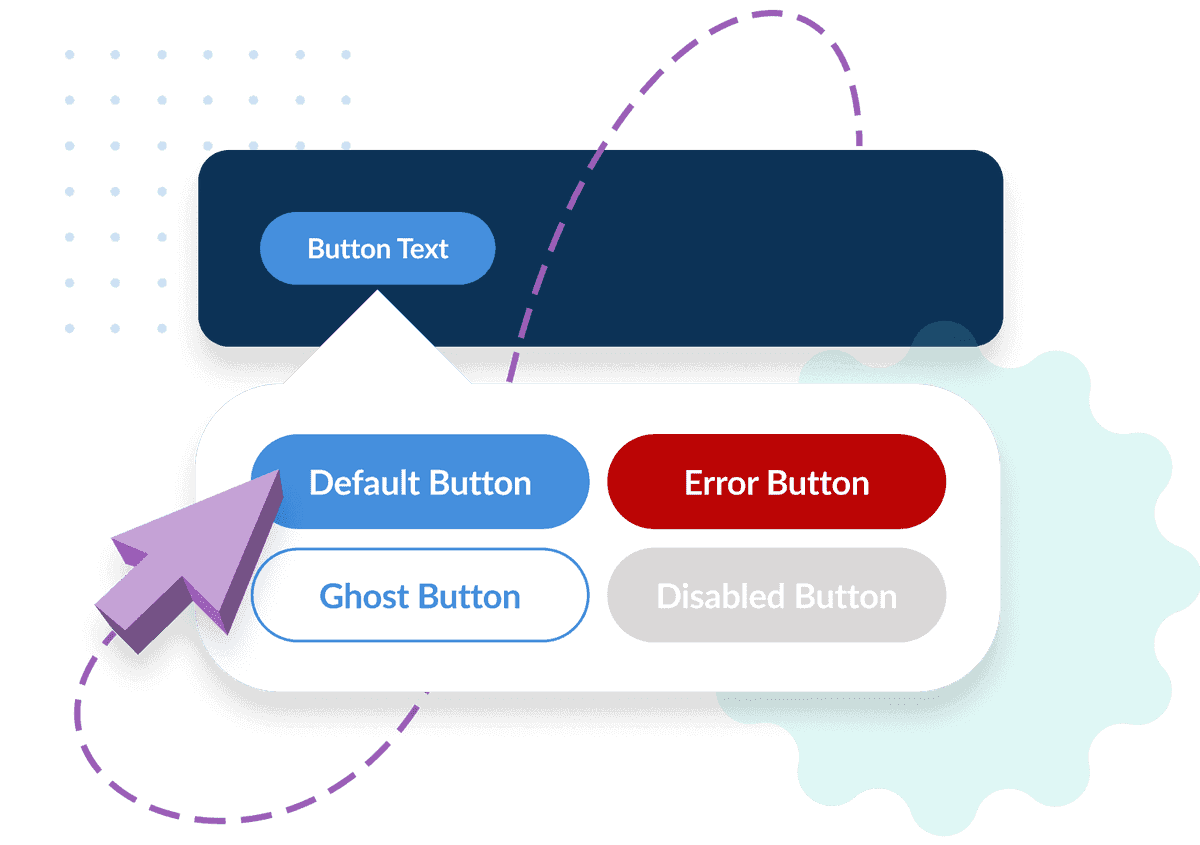
How to Use Variants
Define Variants in Your Theme
In your Theme, navigate to the Advanced tab to view your theme code, create a base element (the default style) and add variants. Give each variant a unique name and its own styles.
Apply Variants to Blocks
When building a block, use the variant="name" attribute on an element to apply one of your pre-set styles.
Edit Variants in the Email Builder
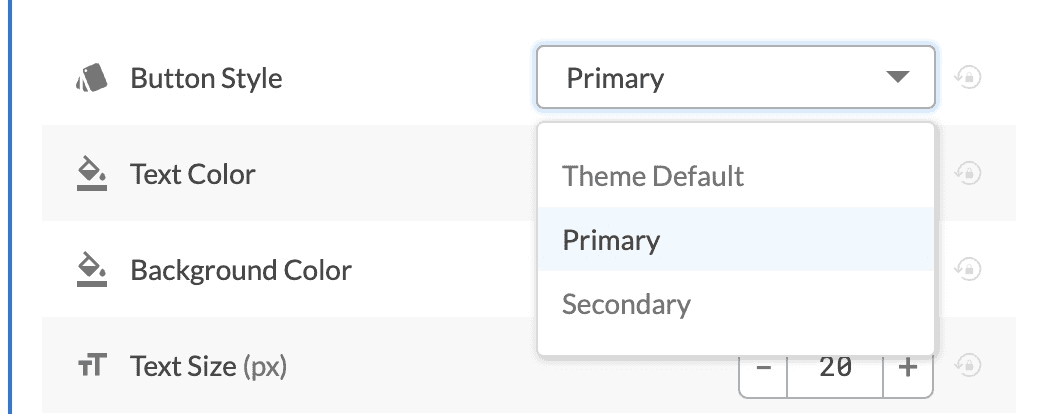
Add the editable attribute so users can switch between variants right inside the email builder.
Understanding Style Precedence
When more than one style is defined for the same element, Dyspatch decides which one to use based on the following order: editable style → variant → block → theme
- Editable styles: user changes in the email builder override everything.
- Variant styles: pre-set variant styles override default elements.
- Block defaults: attributes defined on the block.
- Theme defaults: base element style in the theme.
Locked-Down Themes
If your theme is locked, make sure editable-styles is enabled for users to change variants.
Custom CSS Utilizing Variants
You can add css-class attributes to a variant declaration in your theme to control assigning extra styling. This can be utilized on any dys-element and gives your theme precise control without extra markup at the block level.
Example: Set a variant on a <dys-row> and use CSS to style its inner div to create an inset accent row.
Adding the variant in your theme to apply the accent class to all inset rows:
<dys-attributes>
  <!-- theme style declarations -->
  <dys-row variant="inset" css-class="accent"/>
</dys-attributes>
In your theme's dys-style CSS, target the inner div of any row using that variant's class:
.accent div {
  padding: 24px;
  margin: 24px auto !important;
  background-color: #ffffff;
  border-radius: 8px;
}
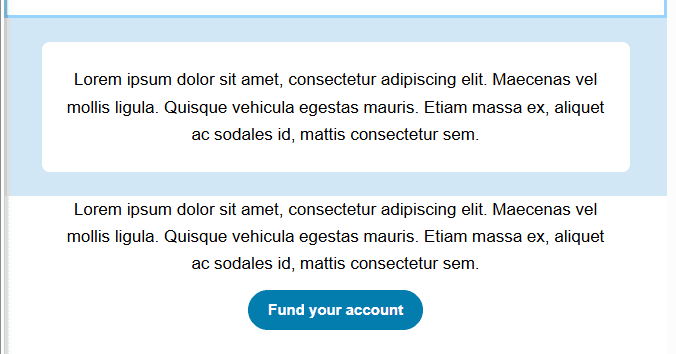
Because the class is applied on the outer <dys-row> element, you can reach any nested element using standard CSS selectors — making it easy to restyle backgrounds, borders, padding, and more on inner containers using variants for consistency, and without touching the block code.
Best Practices
For Theme Developers
- Plan ahead: If builders often change spacing, fonts, or colors, create variants for those cases.
- Keep it curated: Only add variants that fit your brand system; don’t overload your theme.
- Name clearly: Use descriptive names like "button-secondary" or "card-highlight" so it’s obvious what each does.
For Block Builders
- Use variants first: Don’t rely on manual overrides. Variants reset block-level settings to the theme baseline, which is good!
- Request new variants: If you keep making the same tweak, ask your theme team to add a variant for it.
For Email Builder Users
- Switch carefully: Changing variants can remove your custom block edits.
- Always preview: Check your email before publishing to make sure the styling looks right.