# Marketo Integration Setup


Quickly send your team's Dyspatch emails using Marketo's email marketing and sending services. This guide will outline the steps needed to integrate your Adobe Marketo account to Dyspatch.

### Get Marketo Account Assets for Integration

To enable the Dyspatch integration with Marketo, you will need your Client ID, Client Secret, and Base URL from your Marketo account. 

#### Retrieve Marketo Client ID and Client Secret

In the Admin Panel on the left side of your Marketo account page, select Admin > Integration > LaunchPoint. 

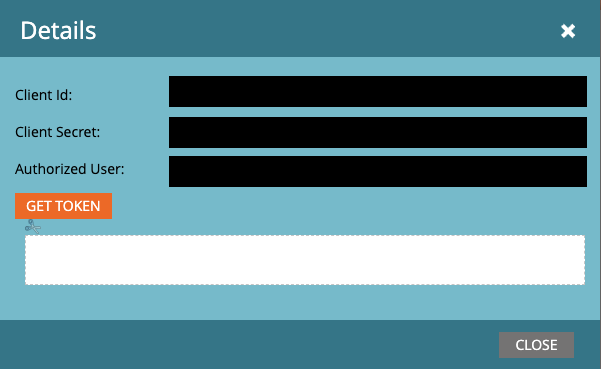
Select "View Details" for the custom Marketo service you want to integrate. This will display a box with your Client ID and Client Secret. 
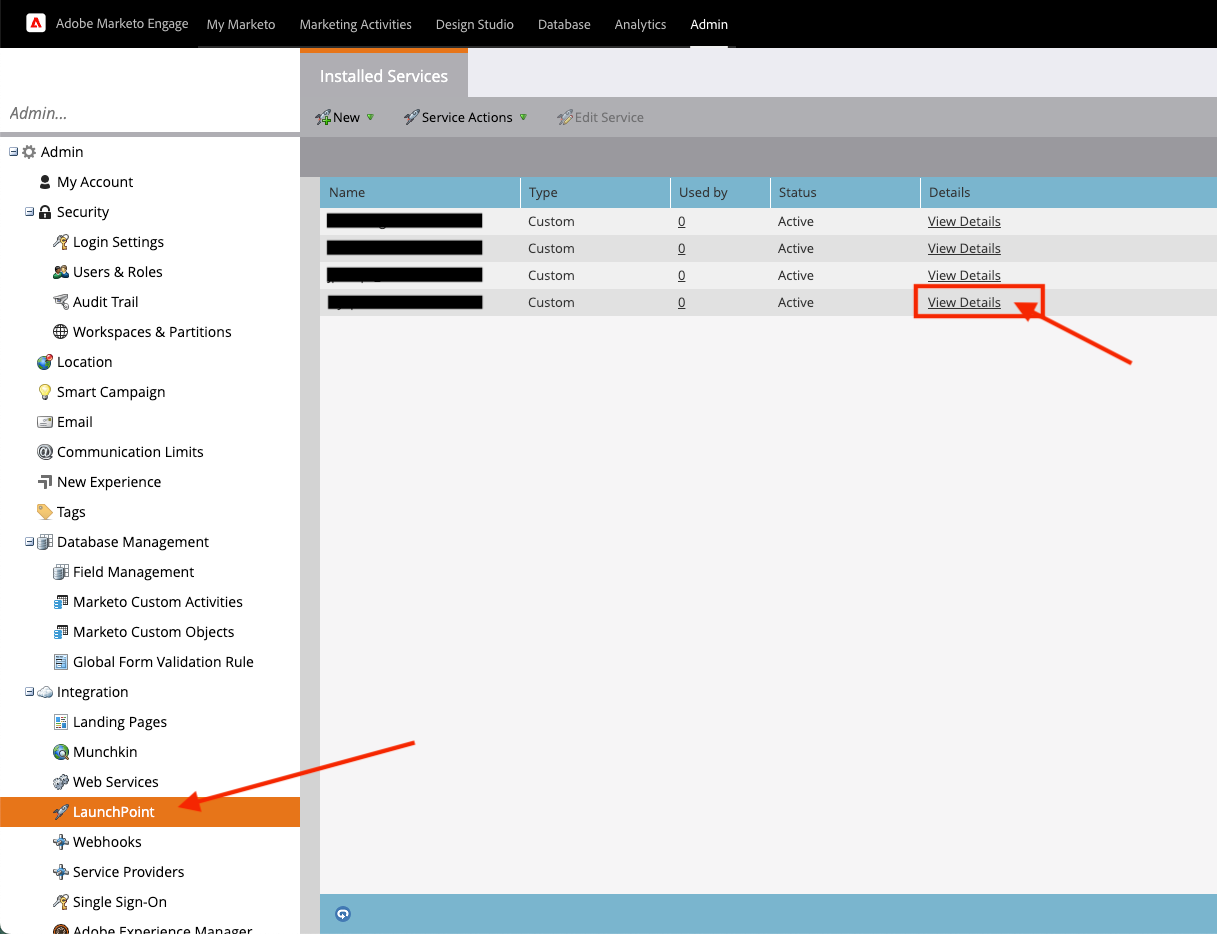
<img class="img-border img-center" src="https://docs.dyspatch.io/img/integrations/marketo-launchpoint-installed-service.png"
alt="Marketo launchpoint installed service page with Client ID and Client Secret." />

<img class="img-border img-center" src="https://docs.dyspatch.io/img/integrations/marketo-client-id-and-secret.png"
alt="Marketo installed service details modal with Client ID and Client Secret." />

View the <a href="https://developers.marketo.com/rest-api/authentication/" target="_blank">Authentication Marketo doc</a> for more information. 

#### Retrieve Marketo Account Base URL 

In the Admin Panel on the left side of your Marketo account page, select Admin > Integration > Web Services. 

In the "Rest Api" table will be the "Endpoint" URL, that is your Base URL.
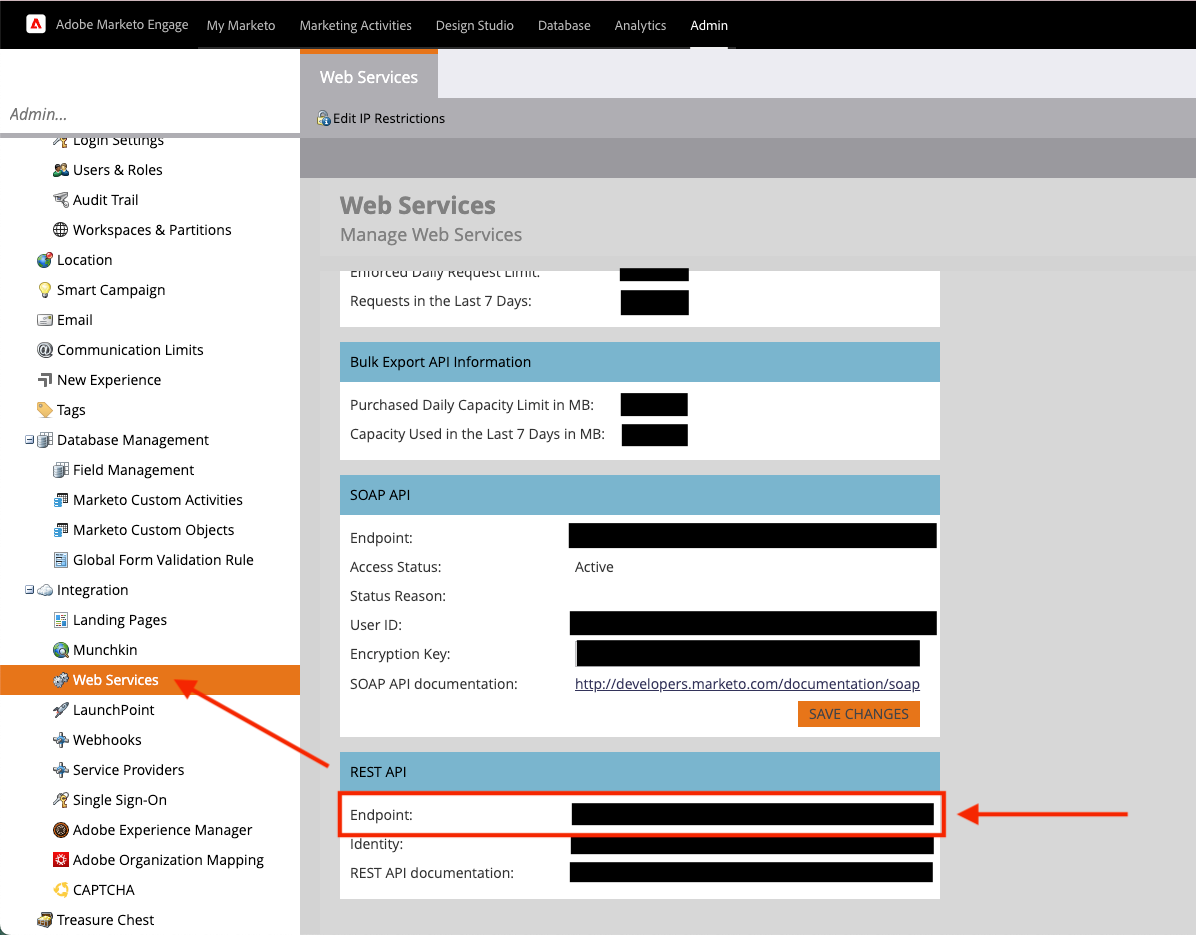
<img class="img-border img-center" src="https://docs.dyspatch.io/img/integrations/marketo-rest-api-endpoint.png"
alt="Marketo rest api endpoint under web services menu." />

View the <a href="https://developers.marketo.com/rest-api/base-url/" target="_blank">Base URL Marketo Doc</a> for more information.

### Connect your Marketo Account to Dyspatch

Now that you have the values needed from Marketo, you can add the integration in Dyspatch. 

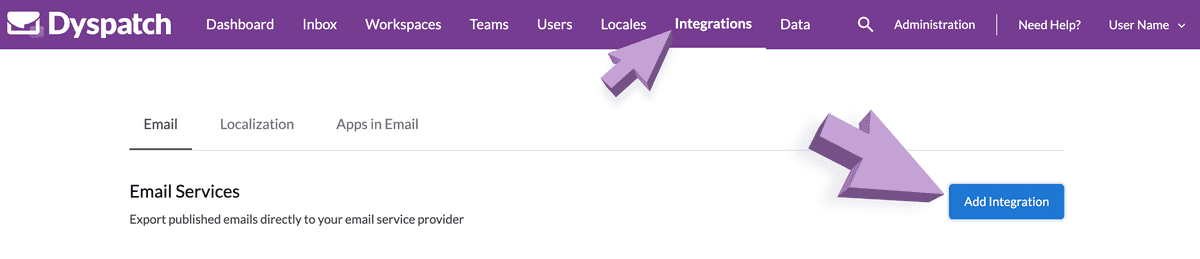
Select **Add Integration** on the <a href="https://app.dyspatch.io/admin/integrations/email" target="_blank">Admin > Integrations</a> page in Dyspatch.

![Arrows to add integration button in admin dashboard](https://docs.dyspatch.io/img/integrations/apps-integration-add-integration.png)

<div class="highlight note"> You may need to unlock integrations for your team's account. Reach out to our <a href="mailto:support@dyspatch.io">support team</a> to get integrations set up.</div>

Fill in the fields with the values you collected earlier.
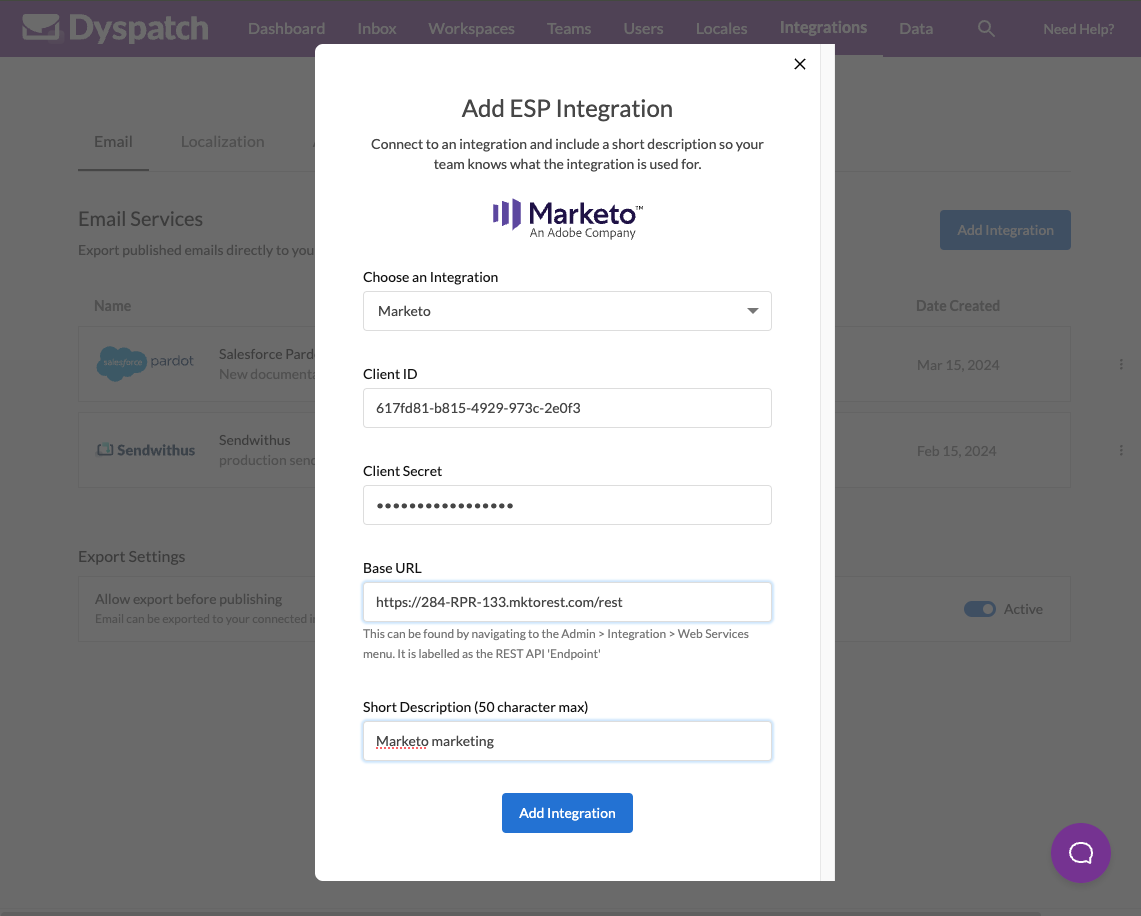
<img class="img-border img-center" src="https://docs.dyspatch.io/img/integrations/marketo-integration-form.png"
alt="Marketo new email service integration form filled out with examples." />

<div class="highlight tip">Add a descriptive name to the short description field to let your other team members know what Marketo account this is</div>

[Find your Marketo Client ID, Client Secret, and Base URL](/integrations/marketo_setup/#get-marketo-account-assets-for-integration).

### Export to Marketo Integration

That's it! You can now export your emails directly to Marketo. Click **Export** from a published email, select the **Export to Integration** tab on the left side of the export modal and select Marketo.
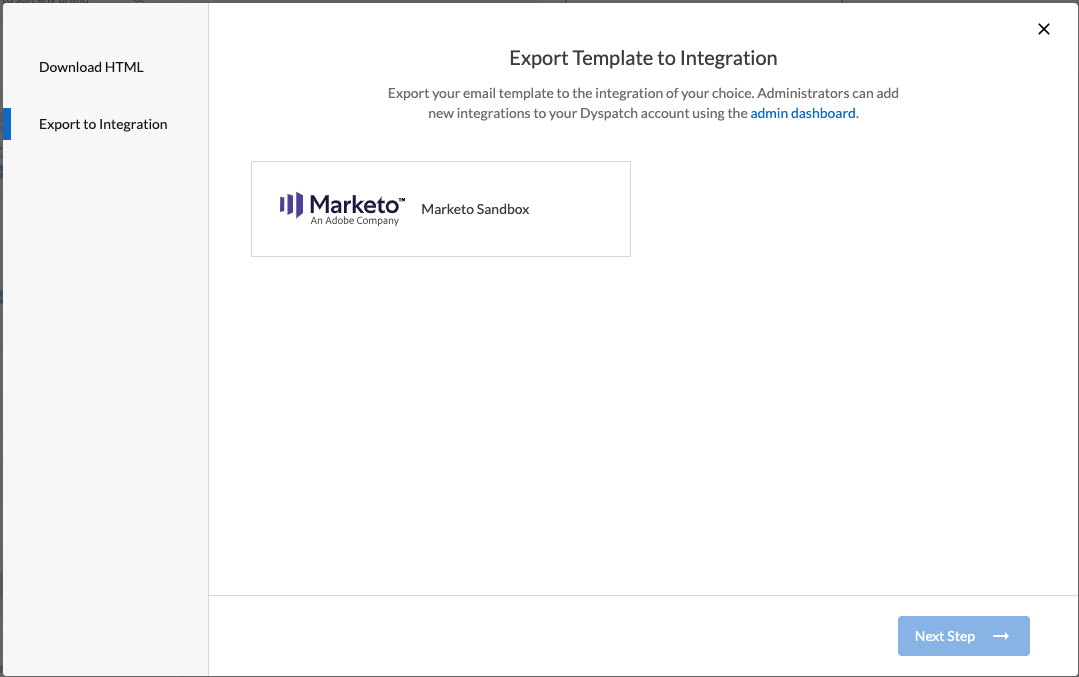
<img class="img-border img-center" src="https://docs.dyspatch.io/img/integrations/marketo_integration_export_option.png"
alt="direct export of email to Marketo option in export modal." />

Dyspatch will automatically create an import folder labeled "Dyspatch Imports" in Marketo which will house your Dyspatch emails. You can find that under the "Marketo Design Studio" tab in your Marketo dashboard. 

<div class="highlight note">Depending on your exported emails's state in Marketo, exporting new versions of the same draft from Dyspatch will have different effects on your emails in Marketo. See the <a href="https://developers.marketo.com/rest-api/assets/email-templates/#create_and_update" target="_blank">Marketo Create and Update</a> documentation for more information on updating templates.</div> 

<!-- Uncomment below once Exporting to Marketo doc is made -->
<!-- ### Learn More -->
<!-- Read more about working with Marketo in Dyspatch on our [Marketo Integration](/integrations/marketo/) page. -->

<!-- Left here incase we should add it to this doc, or use in "export to marketo" page later -->
<!-- NOTE : The email can be previewed in Marketo's "Preview Draft" previewer, and approved by selecting "Approve draft" in Marketo -->